. Pressing this button IN or OUT switches the
tracking ON/OFF.
. Pressing this button IN or OUT switches the
tracking ON/OFF.
EDITING .INI File (e.g. adding
COM ports for DirectSOFT)? . . . See
DirectSOFT FAQ0008 & DirectSOFT
FAQ0204
COMMUNICATION Problems? . . . See DirectSOFT
FAQ0013
INSTALLATION Problems? . . . See DirectSOFT
FAQ0016
PRINTING Problems? . . . See DirectSOFT
FAQ0018
DOCUMENTATION Problems? . . . See
DirectSOFT FAQ0040
DirectSOFT FAQ0001 (see
also DS Data FAQ0002)
06-May-2002
Q: Using both DirectSOFT Programming and DS Data simultaneously,
why does my PC lock-up?
A: You are probably using a common link. Instead, create two
different links.
DirectSOFT FAQ0002
21-May-2002
Q: Can I import rung comments in DirectSOFT?
A: Yes, but only in v4.0. Earlier versions do not support this.
DirectSOFT FAQ0003
21-May-2002
Q: How can I prevent my rung comments from getting corrupted?
A: Upgrade to at least DirectSOFT v3.0c Build 80 (many comment
issues were fixed). DirectSOFT v4.0 supports export comments.
Therefore exporting comments often would provide you with a safety
guard in a text format. Also, DirectSOFT v4.0 provides ability to do
backups of project. Also, it is better to work with the project
directly on the hard drive and not a server.
DirectSOFT FAQ0004
21-May-2002
Q: What causes "Error, invalid path values .DTA"?
A: The .DTA files are for Data View in DirectSOFT. If you copied
your project to a different folder, but you didn't copy the .DTA files
as well, you will get this error.
DirectSOFT FAQ0005 (see
also ECOM FAQ0002)
28-May-2002
Q: What causes "Task code error response" with extended E353
error?
A: Error is from PLC and means "timeout in the background
communications." Error is due to backplane comm problem (ECOM, DCM,
etc.)
DirectSOFT FAQ0006
28-May-2002
Q: What causes "Error filter error reading internal op codes
importing TISoft to DS" error?
A: This is a bug that was fixed with DirectSOFT v3.0c Build71 +
patch.
DirectSOFT FAQ0007
29-May-2002
Q: What files are effected by a save?
A: For details, see file DSP
save and load chart2.PDF. The following is a summary of the file
extensions:
File --> Save Project --> to Disk (Ctrl+S):
In DirectSOFT v5.0 there is an additional file effected:
Write-to-Disk (Ctrl+F12) button:
In DirectSOFT v5.0 there is an additional file effected:
DirectSOFT FAQ0008
07-Jul-2017
Q: What things can be setup using the DS600.INI (DS300.INI /
DS400.INI / DS500.INI) file?
A: The following parameters can be added (or adjusted) in the
DS600.INI (DS300.INI / DS400.INI / DS500.INI) file.
To see how to pull up the .INI file for
editing, refer to DirectSOFT FAQ0204.
| PARAMETER NAME | HEADING IN FILE | SYNTAX | NOTES | EXAMPLE |
| COMxEnable | [devasync.dll] | COMxEnable=y | x = COM port number y = 0 (to disable) 1 (to enable) |
COM5Enable=1 |
| ModemEnable | [devasync.dll] | ModemEnable=x | x = 0 (to disable) 1 (to enable) |
ModemEnable=1 |
| EthernetEnable | [devether.dll] | EthernetEnable=x | x = 0 (to disable) 1 (to enable) |
EthernetEnable=1 |
| Autosense | [Comm Server] | Autosense=x | x = 0 (to disable) 1 (to enable) |
Autosense=0 |
| Dump | [devasync.dll] | Dump=x | x = 0 (to disable) 1 (to enable) |
Dump=1 |
| MessageBoxTime | [COMMON] | MessageBoxTime=x | x = <seconds> |
MessageBoxTime=5 |
| PROGRAM COLORS(1) | [PROGRAM COLORS] | x=y | x = parameter number y = color number |
9=16711680 |
| UDPPortNumEnable(2) | [devether.dll] | UDPPortNumEnable=x | x = 0 (to disable) 1 (to enable) |
UDPPortNumEnable=1 |
| PROJECT PATH | [PATHS] | PROJECT PATH=x | x = <folder path> | PROJECT PATH=c:\MyProjects |
| LadderPalette(3) | [SETUP] | LadderPalette=x | x = 0 (to turn off) 1 (to turn on) |
LadderPalette=1 |
| UseLargeBtns(4) | [SETUP] | UseLargeBtns=x | x = 0 (use small
buttons) 1 (use large buttons) |
UseLargeBtns=1 |
| BACKUP PATH | [PATHS] | BACKUP PATH=x | x = <folder path> | BACKUP PATH=c:\MyBackups |
| RTSxDelay | [devasync.dll] | RTSxDelay=y | x = On (for on-delay) Off (for off-delay) y = <milliseconds> |
RTSOnDelay=5 |
| OnTheWeb | [DSLaunch] | OnTheWeb=x | x = 0 (to disable) x = 1 (to enable) |
OnTheWeb=1 |
| Elements |
[Data Sets] | Elements=x |
x = 0 (USA) x = 1 (Japanese) |
Elements=1 |
| Mnemonics | [Data Sets] | Mnemonics=x | x = 0 (USA) x = 1 (Japanese) |
Mnemonics=1 |
| INFLOOPTIMEOUT(5) | [SETUP] | INFLOOPTIMEOUT=x | x = 1 to 4294967296 | INFLOOPTIMEOUT=65536 |
NOTES:
(1) - Only use this to fix a problem (e.g. DirectSOFT
FAQ0020, DirectSOFT FAQ0043). The
parameter and color numbers are not defined in a user-friendly manner.
(2) - Became available with DirectSOFT v3.0c Build 54
(01-Sep-2000)
(3) - Became available with DirectSOFT v4.0 Build 18
(09-Dec-2002)
(4) - Only available in DirectSOFT v4.0. Not available in
DirectSOFT v5.0.
(5) - Only modify this if you have received the "Infinite Loop
Timeout" message. This parameter became available with DirectSOFT v4.0
Build 20 (27-Jun-2003).
DirectSOFT FAQ0009
07-Jun-2002
Q: Getting CSMain.exe error when doing a Find for an element in
Ladder view.
A: Upgrade to at least v3.0c Build71 +patch or v4.0.
DirectSOFT FAQ0010
19-Mar-2010 (see also LookoutDirect FAQ0016)
Q: In DirectSOFT under Add Link get double listings (two COM1's,
two COM2's, two Ethernets, two DL250s, etc.).
A: One of 4 things has probably happened:
The bottom line is that you have multiple copies of the Devasync.DLL and Devether.DLL files and you only need one. To fix search your hard drive and delete all copies of these two files except the ones in the DirectSOFT installation folder, BIN folder (e.g. c:\DirectSOFT5\Bin).
DirectSOFT FAQ0011 (see
also DS Data FAQ0053)
13-Jun-2011
Q: Trying to get USB adapter to work, getting "Comm Error - Cannot
access comm port. The port may not be present or another application
might be using it."
A: Make sure that there are not any other devices (like internal
modems) using the COM port that the USB adapter driver is trying to
use. Also, it is recommended that you upgrade DirectSOFT to at least
v4.0 Build 18, or v3.0 Build 80. Or make sure you use a USB that has
been approved and tested by Host Engineering for use with DirectSOFT.
Also, it is recommended that you:
This list is updated as we go:
DirectSOFT FAQ0012
17-Jun-2002
Q: Using Targus USB converter, WinXP, Toshiba Satellite 2405 S201,
getting, "Error connecting to PLC"
A: Host has not tested the Targus USB converter and it is
therefore we cannot recommend it. However, upgrading your DirectSOFT
to the latest Build is always recommended because Host continuously
attempts to improve communications with the wide variety of USB
drivers now being sold. (see DirectSOFT FAQ0011
for list of compatible USBs).
DirectSOFT FAQ0013 (see
also DS Data FAQ0045; similar to ECOM FAQ0024; similar to EZ Ethernet
FAQ0005)
10-Mar-2014
Q: Need general help on communications from PC to PLC and
establishing a link.
A: First of all, always make sure you are using the latest version
of DirectSOFT possible.
Secondly, if you are using an ECOM and
have WinXP on your PC with a firewall (particularly with SP2), then you
must do one of the following:
(1) Turn the firewall off, or
(2) Create an exception for CSMAIN.EXE
application (located in the BIN folder under your DirectSOFT folder), or
(3) Create an exception for port #0x7070
(28784) for both TCP and UDP protocols, which is the port number that
all of our Ethernet devices use for communication.
Thirdly, you can control which
communications resources on your PC you want to let DirectSOFT use by
entries in the DirectSOFT initialization file (DS500.INI):
COMMUNICATIONS RESOURCES
You must edit DirectSOFT's DS500.INI file to change communication
resources.
(To pull up the .INI file for editing, see DirectSOFT
FAQ0204)
There are 3 parameters that can be
modified regarding communication resources:
(1) COMxEnable - To edit this resource in the
.INI file, see DirectSOFT FAQ0008.
(2) ModemEnable - To edit this resource in the
.INI file, see DirectSOFT FAQ0008.
(3) EthernetEnable - To edit this resource in
the .INI file, see DirectSOFT FAQ0008.
NOTE: In some extremely rare cases with DirectSOFT versions older than v4.0, to totally disable Ethernet resources you not only have to do the above, but also you may need to rename the files Devether.DLL and Protoecm.DLL to Devether.OLD and Protoecm.OLD. Don't forget to rename them back after troubleshooting!
STARTUP
MODEM LINKS
Modem links must be configured manually. Here is a checklist for getting a modem connection working:
USB-TO-SERIAL
These devices have drivers with them that
should make them act like regular COM ports. (See DirectSOFT
FAQ0011 for approved USB-to-Serial devices tested by Host
Engineering). However there have been a few vendors that don't do this
with their drivers. DirectSOFT "thinks" it is talking to a COM port,
Ethernet NIC, or modem. It doesn't know a USB-to-serial device.
The order of installation, however, seems to be important:
AUTOSENSE
Once links have been created for
DirectSOFT, it validates these each time you start it. You can stop
this from happening by editing the .INI file and changing AutoSense:
- To pull up the .INI file for editing, see DirectSOFT
FAQ0204.
- To edit Autosense parameter in the .INI file, see
DirectSOFT FAQ0008.
DUMP (for troubleshooting
SERIAL and MODEM links)
When you can't figure why things won't
work exactly right, you can use this debug function with a little help
from Automation Direct, or Host Engineering. This parameter is in the
.INI file.
- To pull up the .INI file for editing, see DirectSOFT
FAQ0204.
- To edit Dump parameter in the .INI file, see DirectSOFT
FAQ0008.
After making this change you should start the debug window logger:
DirectSOFT FAQ0014
24-Jun-2002
Q: Mouse scroll wheel doesn't work in DirectSOFT, but works in
other applications.
A: The first thing to try is to update to at least DirectSOFT
v4.0 Build 24. If that doesn't work then you may need to download the
mouse control software for your mouse. For example, download and
install Microsoft Intellipoint for Microsoft mice, and Logitech
MouseMan software for Logitech mice, etc.
DirectSOFT FAQ0015
25-Jun-2002
Q: Using DirectSOFT v3.0c Build 71 + patch; why is there no option
to export program to CSV file.
A: This is not supported in v3.0c, must have v4.0.
DirectSOFT FAQ0016
10-Jun-2010
Q: Having DirectSOFT installation problems.
A: Primary things to check before consulting the errors listed
below:
Below are various installation errors that have been encountered and their solutions.
DirectSOFT FAQ0017
22-Oct-2007
Q: Why are there instructions listed in the DirectSOFT Help file
that do not show any support for the DL CPUs? (e.g. COS, ACOS,
ATAN).
A: Because Koyo (the maker of the DL PLCs) sells a larger PLC with
a superset of the instructions listed for the AutomationDirect PLCs
and DirectSOFT supports those CPUs as well. But these PLCs are sold to
a very specific market in Japan and are not available otherwise.
DirectSOFT FAQ0018
29-Jan-2010
Q: Trying to print from DirectSOFT and having various problems.
A: Various printing issues are listed below:
DirectSOFT FAQ0019
28-May-2002
Q: Importing CSV file causes DirectSOFT to crash.
A: We work very hard to keep all reported crashes from happening.
If a crash happens with an import, the first thing to do is to upgrade
to the latest Build for your version. So far this has fixed every case
to date.
DirectSOFT FAQ0020
28-May-2002
Q: Pressing the Default button for color options (View, Color
Setup) does not restore the colors to their defaults.
A: This is a bug in v3.0c Build71 (or less), v4.0 Build16 (or
less). To fix, upgrade to later versions. Temporary workaround is to:
DirectSOFT FAQ0021
03-Jun-2002
Q: Help file is hard to use.
A: Host is continuing to update and improve the help file, but
the manual is always up-to-date.
DirectSOFT FAQ0022
15-Nov-2002
Q: Having trouble connecting to Port 1 of DL250. Port 2 works
fine.
A: Port 1 is K-seq protocol only. Next, make sure the link
properties are 9600 bps, 8 data bits, odd parity. Also don't rule out
the possibility that the port on the DL250 could be bad, or that the
cable is bad.
DirectSOFT FAQ0023
12-Nov-2007
Q: Why are stages shown out of numerical sequence in Stage View?
A: The order is determined by a very complex algorithm and cannot
be changed. However, we are considering options for future DirectSOFT
releases.
DirectSOFT FAQ0024
09-Dec-2002
Q: Need to scroll through the program that advances the screen to
the next stage. Currently have to scroll down until it is found.
A: Should use Stage View. This allows one to navigate through
Stages easily.
DirectSOFT FAQ0025
02-Jan-2019
Q: How can I copy the links from one DirectSOFT installation to
another (e.g. on a different PC)?
A: The links in DirectSOFT are stored in the CommServ.RST file
located in the Bin folder located under DirectSOFT installation
folder. All you have to do is copy this file from one Bin folder to
the other. However with the advent of DirectSOFT v6.2, the destination
Bin folder is different.
|
DirectSOFT VERSION |
Source of CommServ.RST | Destination of CommServ.RST |
| v4 | c:\DirectSOFT4\Bin | c:\DirectSOFT4\Bin |
| v5 | c:\DirectSOFT5\Bin | c:\DirectSOFT5\Bin |
| v6.0 | c:\DirectSOFT6\Bin | c:\DirectSOFT6\Bin |
| v6.1 | c:\DirectSOFT6\Bin | c:\DirectSOFT6\Bin |
| v6.2 | c:\Users\Public\Documents\DirectSOFT6\Bin | c:\Users\Public\Documents\DirectSOFT6\Bin |
| v6.3 | c:\Users\Public\Documents\DirectSOFT6\Bin | c:\Users\Public\Documents\DirectSOFT6\Bin |
DirectSOFT FAQ0026
15-Jan-2003
Q: What is the earliest version of DirectSOFT that supports
Exporting Documentation?
A: DirectSOFT Programming v3.0.
DirectSOFT FAQ0027
16-Jan-2003
Q: When you enable the Dump function in the DS500.INI file, where
does it place the dump file?
A: After editing this parameter in the DS500.INI file you must
start the Dbwin32.EXE program. Then in that window you can save the
dump to any filename you like.
- To pull up the .INI file for editing, see DirectSOFT
FAQ0204.
- To edit the Dump parameter in the .INI file, see DirectSOFT
FAQ0008.
DirectSOFT FAQ0028
17-Jan-2003
Q: Can DirectSOFT program an SA-21 (0.5K-words version of
D3-330P)?
A: Yes.
DirectSOFT FAQ0029
17-Jan-2003
Q: Saving or opening a project gets an error. "Couldn't open new
database. Reopened failed." But can still get program to come up.
A: Check the Projects Path in the DS500.INI file and make sure it
is pointing to a folder that you have access to.
- To pull up the .INI file for editing, see DirectSOFT
FAQ0204.
- To edit the PROJECT PATH parameter in the .INI file, see
DirectSOFT FAQ0008.
DirectSOFT FAQ0030
21-Jan-2003
Q: What is the meaning of all the files in a project?
A: See DSP save
and load chart2.pdf document.
Summary:
CSV - Comma separated variable
CWB - Counter I/O configuration
DTA - Data view
DV - DV1000 setup
ERM - Ethernet remote master config
ESD - Element documentation (nickname, wiring info, description)
ESX - Index for element documentation
INF - Project information
LCD - Ladder comment data
LCX - Ladder comment index
LDA - Maps rung comments to rung #'s
LDO - Online only, maps rung comments to rung #'s (temporarily until
saved offline to LDA file)
PID - PID documentation
PRJ - Ladder program
PRT - Print layout config
RD - 305 R-memory data
RF - 305 R-memory data editor format
SCD - Stage comments
SCX - Index for stage comments
TLS - PLC parameters, I/O configuration, pause bits
TXT - Text file
VD - V-memory data
VF - V-memory editor format
WSP - DirectSOFT window layout
In DirectSOFT v5.0 there is an additional file in the project:
XML - Docking-pane screen coordinates
DirectSOFT FAQ0031
21-Jan-2003
Q: Is the 330S in DirectSOFT the same as a 330P?
A: Yes.
DirectSOFT FAQ0032
21-Jan-2003
Q: Can source code of DirectSOFT be obtained?
A: The source code of DirectSOFT is not for sale.
DirectSOFT FAQ0033
21-Jan-2003
Q: Does Host customize DirectSOFT for customers?
A: Customizing DirectSOFT is not something Host has the resources
to devote to at this time (January 2003).
DirectSOFT FAQ0034
24-Jan-2003
Q: Why do the messages in DirectSOFT come up in German?
A: You have Siemens Step7 software installed on your PC. First
try renaming the MFC42LOC.DLL file to *.OLD and reboot. If that
doesn't work you may have to uninstall both Step7 and DirectSOFT and
then just reinstall DirectSOFT.
DirectSOFT FAQ0035
10-Sept-2002
Q: Are there any plans to have Ladders view wrap around instead of
scrolling?
A: Host Engineering does not have any plans to change the
scrolling Ladders to a wrap-around view.
DirectSOFT FAQ0036
02-Jan-2019
Q: What version of firmware in the DL-PLC is required for
DirectSOFT v5.x IBoxes to function?
A: IBoxes are supported only in DL05, DL06, DL250-1, DL260 &
DL450 CPUs:
| Direct Logic CPUs | CPU Firmware |
| 05 | v5.10 or later |
| 06 | v2.10 or later |
| 130 | |
| 230 | |
| 240 | |
| 250 | |
| 250-1 | v4.60 or later |
| 260 | v2.40 or later |
| 262 | ALL |
| TI-325 | |
| 330 | |
| 330P | |
| TI-330S | |
| TI-335 | |
| 340 | |
| 350 | |
| TI-425 | |
| 430 | |
| TI-435 | |
| 440 | |
| 450 | v3.30 or later |
| 454 | ALL |
DirectSOFT FAQ0037
(similar to DirectSOFT FAQ0013; see also DS Data FAQ0046)
03-Feb-2003
Q: First time starting DirectSOFT v4.0, crashes and gets
CSMain.exe error.
A: The first thing to check is to make sure that IPX protocol is
loaded for the NIC that is installed (see DirectSOFT
FAQ0183 for installing protocols). Part of this problem was
remedied in v4.0 Build 18 so upgrading may very well fix the problem.
ReadMe_P.htm file says: "3. CommServer -- Fixed CommServer crash
when IPX not installed -- we hope!" However, we know there are
still some other issues centered around IPX protocol that we are
currently debugging.
DirectSOFT FAQ0038
16-Jul-2002
Q: Does DirectSOFT support USB converters that work, not as COM
devices, but rather show up as an Ethernet device?
A: No. The type of USBs that DirectSOFT supports are those that
show up as COM devices. Ethernet-to-USB will not work because in order
to talk to Ethernet, DirectSOFT assumes that you have an ECOM. Thus if
you make an Ethernet link, DirectSOFT wants to talk to an ECOM not a
serial device. Thus when the Ethernet-to-USB converter converts the
Ethernet signals to USB, then the serial device will not understand
the ECOM protocol. See DirectSOFT FAQ0011 for
compatible USBs.
DirectSOFT FAQ0039
04-Feb-2002
Q: Will DirectSOFT export a Ladder file to Tisoft .VPU format?
A: No.
DirectSOFT FAQ0040
21-Apr-2023
Q: Having various problems with documentation files (comments,
etc.); can this be fixed?
A: There are known problems that can occur when documentation
files get corrupted. When corruption has occurred it can cause quite a
variety of unpredictable symptoms. Some of the more common:
The most common corruption is with
the Element Documentation files since these are edited the most
frequently. Element documentation is contained in two files:
The other databases have similar files:
Sometimes when any of these are corrupted they will be unusually large, or larger than they are normally.
There are three main ways to
possibly recover documentation.
(1) AUTOSAVE
RESTORATION
The easiest way to recover from any corruption of the documentation files is to revert back to an earlier version of these files before the corruption occurred. DirectSOFT6 has an AutoSave feature by default, and every time you save your project, it makes a date-time-stamped backup copy and keeps four of these. These are located in the following folder:
c:\User\Public\Documents\DirectSOFT6\Projects\Backup\AutoSave\<YourProjectName>\<DateTimeStamp>\
You can browse there and copy, for example, the ECX and ESD files over to your corrupted project files replacing them with these backups.
(2) EXPORT/IMPORT DOCUMENTATION
Sometimes this works. If your
Element Documentation is corrupt, you can choose File -->
Export --> Element Documentation, and make a TXT file of the
documentation. Then delete (or rename them if you want to save them in
case this doesn't work) the current ECX and ESD files. Then attempt to
do a File --> Import --> Element Documentation, of the
TXT file you just created.
(3) MANUALLY
COPY/PASTE DOCUMENTATION
If all of your backups are corrupted, you will have to use a bit more tedious method. This involves the following steps (for Element Documentation corruption).
If this doesn't work, you may have
to contact technical support (support@hosteng.com).
A similar procedure can be done for
the Ladder comments and Stage comments paying attention to the file
extensions mentioned above.
DirectSOFT FAQ0041 (see
also ECOM FAQ0010)
04-Feb-2003
Q: Is it possible to run 2 NICs on 1 PC to 2 separate ECOMs?
A: Yes. But the only way Host has seen this work is if one NIC
has IPX-only protocol loaded (and not TCP/IP), and the other NIC has
TCP/IP-only protocol loaded (and not IPX). DirectSOFT has no other way
to choose between which NIC to use. see DirectSOFT
FAQ0183 for installing protocols.
DirectSOFT FAQ0042
07-Jul-2002
Q: Used the "Save As..." function and lost documentation!
A: This was a known bug. If you used "Save As..." and then used
the same filename for the project documentation would inadvertently
get deleted! This was fixed in DirectSOFT v3.0 Build 62. However, the
newer Build 71 and Build 71 patch reintroduced the bug because the
code (contained in prgrm30.dll) that gets replaced is actually old
Build 59 code (3.0.059). Problem completely eradicated in v3.0c Build
80 and any version of v4.0.
DirectSOFT FAQ0043
19-Jun-2002
Q: Is there a color setup for monochrome monitors?
A: Monochrome color selection button (View --> Color
options...) has been added to v4.0 Build 18. For earlier versions
you:
DirectSOFT FAQ0044
04-Feb-2003
Q: Using DirectSOFT v2.0 Build 23, trying to communicate to DL250,
get "Unknown PLC type" and then "Attempted access of unlocked
device."
A: Support was added for the DL250 to DirectSOFT v2.1. Since this
is no longer available, you should upgrade all the way to at least
v2.4a. It's free and can be downloaded from Host website. See DirectSOFT
FAQ0059 for a table showing which versions of DirectSOFT support
which DL CPU.
DirectSOFT FAQ0045
20-Dec-2007
Q: In the DL06, when Aliases are turned ON, why does the RX/WX
instruction show V1200 as CTA200, but the LD instruction doesn't?
A: This has to do with the fundamental function of the addressing
parameter of RX/WX instruction versus the LD instruction. The RX/WX
parameter is the remote PLC's address, whereas
the parameter of the LD instruction is the local
PLC's address. Thus, with Aliases turned ON we chose to use the
Aliases of the "biggest" DL-PLC that Automation Direct sells (DL450)
for the naming of the RX/WX parameter. Examples:
In DL06 with Alias turned OFF:
LD V1200 ; No Alias names are displayed for any instruction.
RX V1200 ; No Alias names are displayed for any instruction.In DL06 with Alias turned ON:
LD V1200 ; Not displayed as CTA200 because in DL06 counters only go to CTA177.
RX CTA200 ; The Alias for DL450's V1200 is used. DL450's counters go up to CTA377.
If, however, you use a smaller V-memory location in the DL06 we get:
In DL06 with Alias turned OFF:
LD V1177 ; No Alias names are displayed for any instruction.
RX V1177 ; No Alias names are displayed for any instruction.In DL06 with Alias turned ON:
LD CTA177 ; V1177 = CTA177 in DL06.
RX CTA177 ; V1177 = CTA177 in DL450 as well.
To turn Aliasing ON or OFF:
(1) From DirectSOFT menu: View
--> Options...
(2) Select the Global tab.
(3) Check or Uncheck "Display Aliases".
(4) Press <OK>.
DirectSOFT FAQ0046
04-Feb-2003
Q: Can you create an Ethernet link offline?
A: Yes.
For DS Launch:
If inside DirectSOFT:
DirectSOFT FAQ0047
04-Jan-2008
Q: When configuring a serial link using DirectSOFT, what does the
"Radio Link" selection on the Port tab do?
A: This was added in DirectSOFT v4 Build 23 (25-May-2004) so that
DirectSOFT could assert the DTR line for the CR-HN series radio modems
Automation Direct sells.
DirectSOFT FAQ0048 (see
also ECOM FAQ0042; DL Plus FAQ0009; DNLoader FAQ0010; DSData FAQ0005;
EZ Ethernet FAQ0008; HA-TADP FAQ0002; Lookout Direct FAQ0014; NetEdit
FAQ0005; SDK FAQ0020)
31-Jan-2008
Q: Why doesn't the ECOM use subnet mask or gateway address like the
ECOM100?
A: Since the ECOM doesn't do "master"-type communications, it
doesn't use the subnet mask or gateway address. Whatever talks to the
ECOM will be using IPX or UDP/IP, and the ECOM simply swaps the
destination and source addresses in the telegram and responds in this
way, not "caring" about the subnet or gateway. However, the ECOM100
acts more like a conventional TCP/IP device. The ECOM100 has the
capability to be a master and has a full-blown TCP stack inside. Thus,
if it is to transmit to an IP address not on its subnet, it will, of
course, transmit to its configured gateway address instead.
DirectSOFT FAQ0049
09-Feb-2003
Q: How do I upgrade to the latest version of DirectSOFT?
A: If you have DirectSOFT v4.0, or earlier versions, then you
will have to order the upgrade from Automation Direct:
Automation Direct
3505 Hutchinson Road
Cumming, GA 30040
800-633-0405
http://www.automationdirect.com
If you already have DirectSOFT v5, then you can download maintenance upgrades by:
DirectSOFT FAQ0050
19-Nov-2002
Q: Can I copy contacts from one rung to another?
A: This feature is not in the current versions of DirectSOFT
(v3.0 Build 80; v4.0 Build 18) and there are no plans to add this to
these versions. However, this feature will be included in v5.0 of
DirectSOFT (no date as to release). Also, to get around this issue
now, it is possible to Export the Program to a text file, then use the
copy and paste of your favorite text editor to copy contacts from rung
to rung. Then use the Import Program to get them back into DirectSOFT
project.
DirectSOFT FAQ0051
28-Aug-2002
Q: It would be nice to have the optional lines already added to
the DS400.INI (or DS300.INI, DS500.INI) file, yet commented out, so
one doesn't have to try to remember what to type in, or what heading
to put them under, especially since these are not always documented.
A: Added the following to DS400.INI (& DS500.INI) file in
DirectSOFT v4.0 Build 18 (to activate them, you simply remove the
";"):
[Comm Server]
;AutoSense=0 (To turn OFF autosensing of Comm Links during Comm Server
startup.)
[devasync.dll]
;Dump=1 (To enable a dump of Serial Port debugging information.)
[devether.dll]
;UDPPortNumEnable=1 (To enable display of the UDP Port Number.)
- To pull up the .INI file for editing, see DirectSOFT
FAQ0204.
- To edit the above parameters in the .INI file, see
DirectSOFT FAQ0008.
DirectSOFT FAQ0052
10-Dec-2002
Q: Can I open the same project with two instances of DirectSOFT on
two different PCs?
A: No. If you do, then unpredictable results can happen. (e.g.
comment files can be corrupted!). DirectSOFT doesn't comprehend other
instances of itself wanting to use the same project file. It is only
one client per project at a time. However, we are considering putting
a mult-client feature in v5.0.
DirectSOFT FAQ0053
12-Feb-2003
Q: Does DirectSOFT have problems opening up projects that are
read-only?
A: Yes. DirectSOFT needs to open up the files as read/write.
DirectSOFT FAQ0054
13-Dec-2002
Q: There is no information in the v4.0 Build 16 help file
regarding the setup of the second comm port of the DL06 or the
DL260.
A: This was added to Build 18. Read_Me.htm file says, "29. Setup
Secondary Comm Port Dialogs now show correct Help files based on PLC
type."
DirectSOFT FAQ0055
12-Feb-2003
Q: How can I change the default project folder that DirectSOFT
uses?
A: You must edit the PATH parameter in DirectSOFT's DS500.INI
file. After changing this parameter, then when you use "Save" or "Save
As..." or "Open," etc., this will be the default folder.
- To pull up the .INI file for editing,
see DirectSOFT FAQ0204.
- To edit the PATH parameter in the .INI file, see DirectSOFT
FAQ0008.
DirectSOFT FAQ0056
18-Feb-2003
Q: If customer has an OEM-created DirectSOFT v2.0, can he update
to v2.4 from website?
A: Yes.
DirectSOFT FAQ0057
18-Feb-2003
Q: When trying to download and make diskettes for DirectSOFT v2.4a
from website, get "Not enough space on disk."
A: You must first download the file on the website to your hard
drive, then execute it (double-click), then choose "Make disks" from
menu.
DirectSOFT FAQ0058
19-Feb-2003
Q: What is the difference between the Demo version of DirectSOFT
and the regular version?
A: Depending on which version of DirectSOFT demo you are talking
about:
The DirectSOFT v3.x and v4.x DEMO version:
The DirectSOFT5 DEMO version (called DS100):
DirectSOFT FAQ0059
02-Jan-2019
Q: Trying to load a project but getting "DirectSOFT recognizes the
document <filename> but features or support level is not
installed."
A: This error usually means one of the following 3 things:
| Direct Logic CPUs | DirectSOFT Version | |||||||||||||||||
| v1.12i | v2.0 | v2.1 | v2.2 | v2.3 | v2.3a | v2.4 | v2.4a | v3.0 | v4.0 | v5.0 | v5.1 | v5.2 | v5.3 | v6.0 | v6.1 | v6.2 | v6.3 | |
| 05 | Y | Y | Y | Y | Y | Y | Y | Y | Y | Y | Y | Y | ||||||
| 06 | Y | Y | Y | Y | Y | Y | Y | Y | Y | |||||||||
| 130 | Y | Y | Y | Y | Y | Y | Y | Y | Y | Y | Y | Y | Y | Y | Y | Y | Y | |
| 230 | Y | Y | Y | Y | Y | Y | Y | Y | Y | Y | Y | Y | Y | Y | Y | Y | Y | Y |
| 240 | Y | Y | Y | Y | Y | Y | Y | Y | Y | Y | Y | Y | Y | Y | Y | Y | Y | Y |
| 250 | Y | Y | Y | Y | Y | Y | Y | Y | Y | Y | Y | Y | Y | Y | Y | Y | ||
| 250-1 | (1) | (1) | (1) | (1) | (1) | (1) | (1) | Y | Y | Y | Y | Y | Y | Y | Y | Y | ||
| 260 | Y | Y | Y | Y | Y | Y | Y | Y | Y | |||||||||
| 262 | Y | |||||||||||||||||
| TI-325 | Y | Y | Y | Y | Y | Y | Y | Y | Y | Y | Y | Y | Y | Y | Y | Y | Y | Y |
| 330 | Y | Y | Y | Y | Y | Y | Y | Y | Y | Y | Y | Y | Y | Y | Y | Y | Y | Y |
| 330P | Y | Y | Y | Y | Y | Y | Y | Y | Y | Y | Y | Y | Y | Y | Y | Y | Y | Y |
| TI-330S | Y | Y | Y | Y | Y | Y | Y | Y | Y | Y | Y | Y | Y | Y | Y | Y | Y | Y |
| TI-335 | Y | Y | Y | Y | Y | Y | Y | Y | Y | Y | Y | Y | Y | Y | Y | Y | Y | Y |
| 340 | Y | Y | Y | Y | Y | Y | Y | Y | Y | Y | Y | Y | Y | Y | Y | Y | Y | Y |
| 350 | Y | Y | Y | Y | Y | Y | Y | Y | Y | Y | Y | Y | Y | Y | Y | |||
| TI-425 | Y | Y | Y | Y | Y | Y | Y | Y | Y | Y | Y | Y | Y | Y | Y | Y | Y | Y |
| 430 | Y | Y | Y | Y | Y | Y | Y | Y | Y | Y | Y | Y | Y | Y | Y | Y | Y | Y |
| TI-435 | Y | Y | Y | Y | Y | Y | Y | Y | Y | Y | Y | Y | Y | Y | Y | Y | Y | Y |
| 440 | Y | Y | Y | Y | Y | Y | Y | Y | Y | Y | Y | Y | Y | Y | Y | Y | Y | Y |
| 450 | Y | Y | Y | Y | Y | Y | Y | Y | Y | Y | Y | Y | Y | Y | Y | Y | Y | |
| 454 | Y | Y | Y | |||||||||||||||
(1) Partially compatible. The restriction is that the 250-1 local expansion I/O cannot be seen in DirectSOFT.
DirectSOFT FAQ0060
04-Mar-2003
Q: Can I use the RTS/CTS Flow Control setting in the Link Wizard
to talk from DirectSOFT to DL PLC?
A: No. The reason is that the PLC port does not listen to its CTS
line for incoming data. It only uses the Flow Control RTS/CTS lines
when it wants to send data. So, if you choose RTS/CTS Flow Control in
DirectSOFT, then when DirectSOFT wants to talk to the PLC, it will set
the RTS line, which, if wired correctly, would tell the PLC it wants
to send data. However, because the PLC is not listening to that line,
it would never send DirectSOFT the CTS, so DirectSOFT would time out.
This begs the question, "Why is the Flow Control option selectable in DirectSOFT?" The answer is that if you used a Serial Link to say, COM1, and had an external modem, for example, the modem would be listening to the RTS line and would respond properly. But the PLC port does not function in this manner.
This also begs the question, "Why is Flow Control configurable on the PLC Port?" The answer is that it was specifically designed for sending data to the F2-UNICON and FA-ISONET devices.
DirectSOFT FAQ0061
28-Feb-2003
Q: While a Ladders program is pulled up, can I switch to a
different CPU?
A: Yes. Use PLC --> Disconnect; move the communication cable
(if necessary); then use PLC --> Connect. However, keep in mind
that a program has a CPU type associated with it. This is very
necessary for programming due to the different ranges of the PLCs as
well as their different functions. (You can display what CPU type is
associated with the program by using File --> Properties). For
example, there are many more functions available for a DL06 than there
are for a DL240.
DirectSOFT FAQ0062
06-Mar-2003
Q: After making a link to TI335 using an Automation Direct DCU, it
is seen as a "stage CPU" and repeatedly gets "Knowledge base
mismatch - cannot connect" error.
A: This is a known problem with a TI335. Here are some things to
try:
DirectSOFT FAQ0063 (see
also ECOM FAQ0013)
27-Sep-2010
Q: Connecting to DL PLC with ECOM and getting "????" as the CPU
type; or just getting communications errors.
A: Check the following:
DirectSOFT FAQ0064
04-Feb-2008
Q: How can I disable/enable the "DirectSOFT on the Web" feature in
DSLaunch?
A: By default, the "DirectSOFT on the Web" feature is
enabled in DSLaunch.
DirectSOFT FAQ0065
(similar to DS Data FAQ0009; see also DS Data FAQ0034; ECOM FAQ0014)
07-Mar-2003
Q: How can I speed up the data throughput of my ECOM?
A: Consider the following:
DirectSOFT FAQ0066 (see also ECOM FAQ0016; DS
Data FAQ0089; similar to Do-more FAQ0035)
05-Nov-2019
Q: How can I make a link with DirectSOFT (or DS Data) to a single
ECOM/ECOM100 or multiple ECOMs/ECOM100s over the Internet?
A: There are a number of ways to accomplish this due to the
versatile ways in which Internet connectivity is established.
Method #1 (Direct Connect): Requires the remote ECOM/ECOM100(s) to have a registered Internet IP address.
Method #2 (Indirect Connect): Requires access to the remote gateway/router which must be configured to translate TCP port #s.
Method #3 (ISP VPN): Requires the ISP (Internet Service Provider) set up a VPN (Virtual Private Network).
Method #4 (VPN Software): Requires the use of some form of VPN software (e.g. PC Anywhere, LogMeIn, etc.).
Multiple ECOM/ECOM100 Instructions: In this method if connecting to multiple ECOM/ECOM100s, it is assumed that each ECOM/ECOM100 has its own registered Internet IP address and therefore to connect to each of them only requires that you make separate links to each one.
DirectSOFT Link Configuration to connect to PLC1:
1. Build link in DirectSOFT.
a. On PLC tab select:
PLC Family - Direct LOGIC 205 Series
PLC Type - 250
b. On the Port tab select:
Devices - Ethernet
Transport - Winsock
Transport Protocol - UDP/IP
Node Address - IP Address xxx.xxx.xxx.xxx (Registered Internet IP Address of your ECOM)
Advanced Settings - Timeout (Increase?)
NOTE: To determine how much the "Timeout" setting should be increased:
1. Go to the DOS Command Prompt (Start --> Programs --> Accessories --> Command Prompt)
2. Type in: ping xxx.xxx.xxx.xxx (Registered Internet IP Address of your ECOM)
3. Make note of the "Maximum" time as listed and increase this number by at least 50%.
4. Enter this number as the "Timeout" setting.
UDP Port Number (if it is displayed) - 28,784 (this is the default; must always be this number)
c. On the Protocol tab select:
Protocols - ECOM
d. Click <Auto>. Should beep for success.
e. Enter a name for the link and click <Accept>.
Multiple ECOM/ECOM100 Instructions: In this method if connecting to multiple ECOM/ECOM100s, they are assumed to be located behind the gateway/router on an internal network with internal IP addresses assigned to them. Therefore, the DirectSOFT (or DS Data) links to each of them must use the same IP address of the gateway/router (because from the Internet, that is all it can see). Thus, the only way to differentiate between the multiple ECOM/ECOM100s on the other side of the gateway is by DirectSOFT (or DS Data) using different TCP port #s for each. In order to accomplish this 2 things must be done: (1) DirectSOFT (or DS Data) must have this feature turned ON by editing the .INI file, and (2) the remote gateway/router must be configured to translate the TCP port #s to different IP addresses behind its firewall.
DirectSOFT Link Configuration to connect to PLC4:
1. Edit .INI file and set UDPPortNumEnable=1
- To pull up the .INI file for editing, see DirectSOFT FAQ0204.
- To edit the UDPPortNumEnable parameter in the .INI file, see DirectSOFT FAQ0008.
2. Build link in DirectSOFT.
a. On PLC tab select:
PLC Family - Direct LOGIC 205 Series
PLC Type - 250
b. On the Port tab select:
Devices - Ethernet
Transport - Winsock
Transport Protocol - UDP/IP
Node Address - IP Address xxx.xxx.xxx.xxx (Registered Internet IP Address of your Gateway/Router)
Advanced Settings - Timeout (Increase?)
NOTE: To determine how much the "Timeout" setting should be increased:
1. Go to the DOS Command Prompt (Start --> Programs --> Accessories --> Command Prompt)
2. Type in: ping xxx.xxx.xxx.xxx (Registered Internet IP Address of your Gateway/Router)
3. Make note of the "Maximum" time as listed and increase this number by at least 50%.
4. Enter this number as the "Timeout" setting.
UDP Port Number - 28,787 (can be any free configurable Port # on your particular Gateway/Router)
c. On the Protocol tab select:
Protocols - ECOM
d. Click <Auto>. Should beep for success.
e. Enter a name for the link and click <Accept>.Gateway Configuration Table:
PLC DirectSOFT Link Node Address (Gateway) DirectSOFT Link Port # Nontranslated ECOM Node Address ECOM Port # (cannot be changed) PLC1 xxx.xxx.xxx.xxx
(your Gateway/Router IP)
28,784 (0x7070) 192.168.20.1 28,784 (0x7070) PLC2 xxx.xxx.xxx.xxx
(your Gateway/Router IP)28,785 (0x7071) 192.168.20.2 28,784 (0x7070) PLC3 xxx.xxx.xxx.xxx
(your Gateway/Router IP)28,786 (0x7072) 192.168.20.3 28,784 (0x7070) PLC4 xxx.xxx.xxx.xxx
(your Gateway/Router IP)28,787 (0x7073) 192.168.20.4 28,784 (0x7070)
This method requires that you work with your ISP (Internet Service Provider) and have them set up a VPN (Virtual Private Network) for you so you can connect to the remote network where the ECOM/ECOM100s are located. There are quite a variety of ways in which your ISP can do this for you. Some may require you use their own software to do it. But in most cases once the VPN is established, the connection to the ECOM/ECOM100s on the remote network is exactly like Method #1 (Direct Connect) above.
Multiple ECOM/ECOM100 Instructions: Once VPN connection is established it is assumed that each ECOM/ECOM100 has its own IP address on the remote network and therefore to connect to each of them only requires that you make separate links to each one.
This method requires the use of some form of VPN software (e.g. PC Anywhere, LogMeIn, etc.). The ECOM/ECOM100 cannot be accessed directly with this method but instead the VPN software allows you to control a PC (with DirectSOFT (or DS Data) installed) at the remote site that is on the same network as the ECOM/ECOM100s. Thus, after the connection using the VPN software is established, the connection to the ECOM/ECOM100s on the remote network is exactly like Method #1 (Direct Connect) above.
Multiple ECOM/ECOM100 Instructions: Once VPN connection is established it is assumed that each ECOM/ECOM100 has its own IP address on the remote network and therefore to connect to each of them only requires that you make separate links to each one.
DirectSOFT FAQ0067 (see
also ECOM100 FAQ0059)
22-Sep-2009
Q: When using the IBox ECEMAIL (IB-711), getting various error
codes:
A: These error codes are defined in the description of SMTP
protocol called RFC 821. Here are some of the specific codes we have
seen and their solutions. Otherwise, you can download RFC
821 here, or download this
PDF with some sample solutions, or look up the error codes on
the Internet to find other solutions:
DirectSOFT FAQ0068
04-Jun-2002
Q: There is nothing in the manual nor the help file that indicates
the maximum size of the documentation fields.
A: DirectSOFT v4.0 software has this added to the help file:
Here you will see that the size of the documentation fields are listed as:
Automation Direct is currently adding this information to the manual.
DirectSOFT FAQ0069
07-Jun-2002
Q: Import Documentation rejects using a Nickname of "S0".
A: That is true. S0 is a valid Element Name and means "Stage Bit
0." Therefore it is not possible to assign a valid Element Name as a
Nickname.
DirectSOFT FAQ0070
07-Jun-2002
Q: Import Documentation imports Nickname "UB" as "-----".
A: That is true. "UB" is a valide Nickname and means "Unassigned
Bit." This is a type of unassigned Nicknames that DirectSOFT will
allow you to create. This means that you can have Nicknames that do
not have corresponding Elements assigned to them. Normally in the
Documentation Editor, these show up as "-----" under the Element Type.
When these are Exported, however, instead of getting the "-----" in
the text file, you will see things like "UB" or "UW."
These have certain meanings based on the following list. If generating documentation outside of DirectSOFT (like in an Excel CSV file), use these types based on the following list. They will show up in your Documentation Editor with "-----" under the Element Type:
In summary, DirectSOFT exemplifies the following behavior:
DirectSOFT FAQ0071
12-Jun-2002
Q: The PID View window doesn't show Autotune.
A: This is a known display bug with DirectSOFT v4.0 in Builds
less than Build 20. You can either download the latest Build or simply
resize the PID View window and Autotune will appear.
DirectSOFT FAQ0072
25-Jun-2002
Q: I have two copies of the DS400.INI file, one in the Windows
directory and one under the DirectSOFT4 folder. Which one do I
modify if I want to change the startup characteristics of
DirectSOFT?
A: The one in your Windows directory is the one utilized by
DirectSOFT. This extra copy of the DS400.INI file has been removed
from later versions of DirectSOFT. However, the easiest thing to do to
make sure you are modifying the correct one is to edit the .INI file
from the Windows Start menu (see DirectSOFT
FAQ0204).
DirectSOFT FAQ0073 (see
also DS Data FAQ0092)
10-Nov-2008
Q: How can I change the number of COM ports that DirectSOFT / DS
Data makes available for me to use?
A: By default older versions of DirectSOFT and DS Data had COM1,
COM2, COM3 and COM4 ports available by default. However, due to the
fact that most PCs these days only have COM1 and COM2, DirectSOFT and
DS Data have been changed so that COM3 and COM4 are now disabled by
default. This change was made for DirectSOFT and DS Data v4.0 Build
18. However, it is possible to enable and disable PC COM ports up to
COM199. In order to change your COM port configuration you must edit
DirectSOFT's DS500.INI file:
- To pull up the .INI file for editing,
see DirectSOFT FAQ0204.
- To edit the COMxEnable parameter in the .INI file, see
DirectSOFT FAQ0008.
DirectSOFT FAQ0074
06-Feb-2008
Q: Is it possible to turn OFF the automatic tracking of the Ladders
cursor by XRef in DirectSOFT5?
A: This tracking feature was added to DirectSOFT v5.0, but the
ability to turn this tracking OFF/ON wasn't added until DirectSOFT
v5.1. To turn this feature OFF (or back ON) in DirectSOFT v5.1 or
later, there are 2 ways:
. Pressing this button IN or OUT switches the
tracking ON/OFF. DirectSOFT FAQ0075
25-Jun-2002
Q: Where can I get the DBWin32 program for helping troubleshoot
DirectSOFT links while the Dump feature is turned on?
A: This program is now installed with all versions of DirectSOFT
v4.0 or later. However, if you don't have it, it can be downloaded
here:
http://www.hosteng.com/SW-Products/SP_Demo_Utilites.htm#Utilities
DirectSOFT FAQ0076
18-Jul-2002
Q: Accessing the help in DirectSOFT and received the error:
"Cannot find the Progrun.hlp file. Do you want to try to find this
file yourself?"
A: This is a known bug in DirectSOFT v4.0 in Builds less than
(<) Build 20. As far as we know it only occurs in the following
manner:
To fix you can use the following work-around or simply download the latest Build.
DirectSOFT FAQ0077
24-Jul-2002
Q: At the PLC Password prompt, the mouse cursor remains an
hourglass and I am unable to click on the OK button.
A: This is a known bug in DirectSOFT. This was fixed in
DirectSOFT v3.0 Build 80 and v4.0 Build 18, so upgrading to at least
these builds is advised. A work-around is simply to press the
<ENTER> key on the keyboard.
DirectSOFT FAQ0078
06-Feb-2008
Q: Get "Unrecognized Tagname" error when Kepware imports Element
Documentation.
A: This can be caused by a bug in DirectSOFT v5.0 and v5.1. It was
fixed in DirectSOFT v5.2. Basically, if the XRef has never
been opened for your project, then the XRef database will never be
up-to-date with the program. Solutions:
DirectSOFT FAQ0079
06-Aug-2002
Q: When Merging two programs how are duplicate Nicknames and
Element Types handled?
A: When you invoke the Merge function, DirectSOFT asks you which
program should be given authority in such cases as duplicates.
DirectSOFT FAQ0080
06-Aug-2002
Q: Trying to open or import a project and get error "PLC type is
not supported by any installed knowledge base," or "Unknown file
format unable to import program," or "Can't load knowledge base."
A: You can get these errors for about four reasons. Below are the
ways and possible solutions:
DirectSOFT FAQ0081 (see
also DSData FAQ0016)
13-Feb-2008
Q: Upon starting DSData or DirectSOFT, get "Critical error 1004
invalid INI file."
A: The "INI file" is a reference pointing to the initialization
file for DSData and DirectSOFT (i.e. DS400.INI or DS500.INI files).
This error means one of two things (See 1. & 2. below):
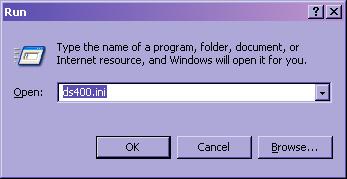
- To make sure it can find the file use Start --> Run and type in "DS400.INI" (or "DS500.INI")
Press the <OK> button. This should pull up the .INI file in a default text editor (e.g. NotePad). If you get an error here then first try reboot the PC and try again. If it still doesn't work uninstall DSData (or DirectSOFT) and reinstall.
- Pull up the .INI file using Start --> Run and type in "DS400.INI" (or "DS500.INI")
Press the <OK> button. Look for "strange" or missing lines in the file. If there are any, it is best to delete the file entirely and then uninstall DSData (or DirectSOFT) and reinstall. You could try to edit it yourself and eliminate the problems in the file, but this would be at your own risk.
If none of the above works use the Search function on your PC and find all occurrences of the .INI file; delete them; uninstall DSData (or DirectSOFT) and reinstall.
NOTE: On a Win2K Server, the .INI file must be in the Administrator's WinNT folder.
DirectSOFT FAQ0082
28-Mar-2002
Q: Attempting Open/Close Project and get "DSP4x.exe" error and
"Unable to save workspace. Disk is write protected or file is
read-only!" error.
A: This is caused by the project files (mainly the .PRN and .WSP
files) being write-protected. If you copied the project from another
computer, a write-protected disk or possibly a CD-ROM this can occur.
To fix:
DirectSOFT FAQ0083
21-Oct-2002
Q: Using Win2K PC with DirectSOFT v4.0 Build 18. If I create a
Data View and save it to my server (e.g. mapped drive K:\), then
reopen it, make a change, and try to save it again, I get "Access to
K:\<pathname> was denied" error.
A: This is a know problem with MFC/Win2K. This means there is a
bug with MFC (Microsoft Foundation Classes) Win2K. MFC is a large
library of C++ classes developed by Microsoft. For Windows-based
applications written in C++, MFC provides an enormous head start. One
of the hardest parts of developing C++ programs (like DirectSOFT) is
designing a logical hierarchy of classes. With MFC, this work has
already been done. MFC is bundled with the C++ compiler that Host uses
to write DirectSOFT. Thus this "toolkit" though extremely useful, is
not perfect. In this case the problem is with this "toolkit" and not
with DirectSOFT.
To work around: Instead of using "Save" . . . use "Save As..."
DirectSOFT FAQ0084
01-Apr-2003
Q: Can the colors of the PID graph be changed?
A: No.
DirectSOFT FAQ0085
01-Apr-2003
Q: After upgrading from v3.0 to v4.0, is it OK to delete the v3.0
Projects folder?
A: Yes, but it is important to insure that you have copied your
old v3.0 projects (that you want to keep) to your v4.0 projects
folder. This can be done manually if need be. However, the upgrade
process will ask you if you want to do this, and it will do it for
you. It simply does a blind copy of the old v3.0 projects folder to
the v4.0 projects folder. Thus no files are lost (e.g. documentation).
All documentation is therefore kept with your project.
DirectSOFT FAQ0086 (see
also CTRIO FAQ0025; ERM FAQ0015)
02-Apr-2003
Q: In DirectSOFT (PLC --> Tools) there are listings for CTRIO
Workbench and ERM Workbench that I don't need. How do I get rid of
them?
A: We believe this could be caused by using Windows Uninstall
instead of the Workbenches' uninstalls; or perhaps storing these
software packages underneath non-default folders. Regardless, these
menu options are setup in the Windows Registry. To remove them
manually it is required that changes be made directly to the Registry.
This is not recommended for the normal user! And on some
PC's the Administrator does not permit it. However, if you dare:
Now in the right window you will see five string values:
To remove them completely right-click on a, b, InstallList and NextInstall one at a time and delete them. The only string value that should remain is (Default).
If you are plagued by multiple menu selections, then just make the registry entries look exactly like the above.
DirectSOFT FAQ0087 (see
also CTRIO FAQ0026; ERM FAQ0016)
02-Apr-2003
Q: Just selecting PLC --> Tools inside DirectSOFT causes my PC
to lock up.
A: We have found this to sometimes happen in versions earlier
than v4.0 Build 18, when you have installed CTRIO Workbench and/or ERM
Workbench under a different folder other than from c:\HAPTools. To
fix:
DirectSOFT FAQ0088 (see
also DS Data FAQ0042)
10-Apr-2003
Q: What is DBWin32 application?
A: It is a debugging tool used to troubleshoot and log vital
information for applications like DS Data and DirectSOFT Programming.
With DS Data it can be utilized in two ways:
With DirectSOFT Programming it can be utilized for troubleshooting only. Follow the same procedure as above except, of course, start DirectSOFT Programming instead of DS Data. When you start the applications (e.g. DS Data, DirectSOFT Programming) you may be asked if you are sure you want to dump information in the logger. Just answer "Yes."
DirectSOFT FAQ0089
15-Aug-2002
Q: My original DirectSOFT was PC-PGM-105. Will installing the v4.0
Upgrade gain me the ability to program the new DL06?
A: No. The PC-PGM-105 allows you to only program the DL05
and the DL105, and upgrading to v4.0 will not buy you the ability to
program a new DL06. To get DL06 programmability you must purchase at
least the PC-PGM-BRICK package.
DirectSOFT FAQ0090
15-Aug-2002
Q: Why does my DL06 link show up as a 250(-1) in DirectSOFT?
A: Earlier versions of the DL06 had DL250-1 firmware.
Upgrading the DL06 firmware will solve this. Firmware and firmware
upgrade tools can be downloaded from the Automation Direct website:
http://support.automationdirect.com/firmware/index.html. If that link
doesn't work:
Now you can download the Koyo support tool for upgrading the DL PLCs, as well as the specific DL06 firmware file.
DirectSOFT FAQ0091 (see
also DS Data FAQ0047)
16-Aug-2002
Q: I have DirectSOFT v4.0 Build 16, and in DS Launch, all the
versions show as v4.0.016 except for one; DSData.exe shows up as
v4.0.012.
A: This is a bug in v4.0 Build 16. To fix, upgrade to at
least v4.0 Build 18.
DirectSOFT FAQ0092
10-Aug-2018
Q: When I tried to delete an unused link in DS Launch I get a
CSMAIN.EXE error.
A: This is probably caused by a corrupt COMMSERV.RST file.
This is the file that stores all the links. Unfortunately there is no
way to repair this file. Therefore the only solution is the delete it
and re-create all your links again. It is stored in the DirectSOFT Bin
folder (see FAQ0025 above for location).
DirectSOFT FAQ0093
19-Aug-2002
Q: How can I tell if I have v3.0 Build 71 patch installed?
A: Follow these instructions:
The version of DEVASYNC.DLL should be v3.0.073.
DirectSOFT FAQ0094
19-Aug-2002
Q: Purchased PC-PGM-305 software. If I go to PLC -->
Diagnostics --> Scan Time, why is the Setup button grayed out?
A: This function is only supported in some CPUs (e.g.
DL405). None of the DL305s support this function.
DirectSOFT FAQ0095
18-Mar-2008
Q: Why does the FILTER (IB-422) and FILTERB (IB-402) Filtered Value
never seem to reach the Raw Data value?
A: This is due to the math of FILTER (BCD) and FILTERB (Binary)
being integer math (no fractions) and the fact that the filter
equation is:
New = Old + ((Raw - Old) / FD)
where:
New is New Filtered Value
Old is Old Filtered Value
Raw is Raw Data
FD is the Filter Divisor
Thus, if the Raw Data value remains unchanged for a long period of time, this inaccuracy in using integer math causes the Filtered Value to stop short of the Raw Data value by 1/2 of the Filter Divisor (due to our use of rounding) as can be seen in the above formula. For example, if you have a Raw Data value that swings between 0 and 4095, but you have a Filter Divisor of 20, and the Raw Data value remains unchanged for a long period of time at the value of 4095, then the Filtered Value will only reach a value of 4085. Likewise, at the low end, if Raw Data remained at zero (0), then Filtered Value would only reach 10.
This effect can be lessened by the use of Real (Floating Point) math. In other words, one could convert the Raw Data and Filtered Values from BCD (or Binary) to Real; do the math and then convert them back to BCD (or Binary). Of course to do this you could no longer use FILTER (IB-422) and FILTERB (IB-402) IBoxes. Mnemonically, the program for a filter using Real numbers might look like this:
STRN
T0
TMRF T0
K100
;
Fast Timer0 is used with a setting of 1 second
STR
T0
;
Calculation is done every second.
LDR
V2010
;
V2010 is the Raw Data to be filtered
SUBR
V2000
;
V2000 is the Filtered Value
DIVR
R20
;
In this example, FD is equal to 20.
ADDR V2000
OUTD V2000
We have plans of making another IBox that would filter using Real (perhaps called FILTERR) in a future release of DirectSOFT5.
DirectSOFT FAQ0096
07-Nov-2008
Q: Even after uninstalling DirectSOFT, I still have the
InstallShield Update Manager / Software Updates program on my PC.
How can I remove it?
A: DirectSOFT uses InstallShield to install itself on your PC. As
an added bonus, InstallShield installs an Update Manager / Software
Update program in order to keep you informed of updates made to
DirectSOFT. Since many other programs in the market use InstallShield
to install themselves on your PC, uninstalling DirectSOFT does not
uninstall this Update Manager / Software Update tool. If you are
confident that no other programs on your PC use this update tool, then
you can uninstall it by downloading the following .ZIP file, unzipping
it to its .EXE file and doubleclick on it to run it. Then just follow
the instructions. This uninstall program was taken from
InstallShield's website here:
http://consumerdocs.installshield.com/selfservice/viewContent.do?externalId=Q111006&sliceId=1
ZIP file: SoftwareManagerUninstall.ZIP
DirectSOFT FAQ0097
05-Sep-2002
Q: On WinME my DirectSOFT v4.0 Build 16 Backup failed and some of
the original documentation files are missing!
A: This is caused by having trailing spaces in your project
file name (e.g. ProjectName<space>.prj instead of
ProjectName.prj) and the fact that WinME was being used. WinME is
particularly affected by this because it cannot create directories
(which DirectSOFT v4.0 Backup attempts to do) with a trailing space in
the name. Other OSs (e.g. WinXP, Win2K) do not have this problem. But
if you have a ProjectName that has a trailing space in it and you
are using WinME, your original documentation files can be
corrupted or deleted if a Backup is attempted! This
problem is remedied in DirectSOFT v4.0 Build 18 or greater. We fixed
this by adding a trailing $ to any ProjectName with a trailing space.
To upgrade go here:
http://www.hosteng.com/SW-Products/DirectSOFT32/DirectSOFT32.htm#Service.
DirectSOFT FAQ0098
09-Dec-2008
Q: Working with DirectSOFT and get "DSP5x - The parameter is
incorrect"?
A: This error message is not from DirectSOFT but rather from the
install & update service that DirectSOFT used. This service used
to be called InstallShield, but then Macrovision and currently
Acresso. Searching their knowledgebase for this error, here are some
things that have helped others resolve this:
DirectSOFT FAQ0099
17-March-2010
Q: Is there a version of DirectSOFT that will run on a
Macintosh/Apple PC?
A: No, and Host Engineering has no plans of creating one in the
future. However, you might try a PC Emulator for the MAC PC. It is
possible that this could work, however, we can offer no support if it
doesn't.
DirectSOFT FAQ0100
21-May-2003
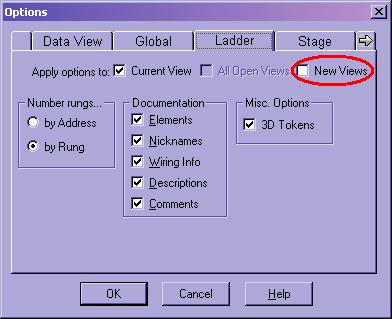
Q: Under View --> Options, Ladders tab, deselected 3D Tokens,
but if the project is closed, DirectSOFT doesn't remember the
setting.
A: To get DirectSOFT to remember the settings you must check the
"New Views" under the "Apply options to:" parameter:
DirectSOFT FAQ0101
27-May-2003
Q: Is DirectSOFT available in German?
A: No. Koyo makes DirectSOFT available in Japanese, but no other
foreign language is supported at this time.
DirectSOFT FAQ0102
09-Sep-2002
Q: What is the minimum requirement for PC to run DirectSOFT?
A: None. The general rule is that if it runs Windows, then
DirectSOFT should work on it. But performance is another issue. We
recommend:
Operating System: Win98, WinME, WinNT, Win2K or WinXP
CPU: Pentium III Class / 500MHz or greater
RAM: 64Mbytes
HardDisk: 20MBytes
PLC Connectivity: RS-232 serial port, USB port with
USB-to-Serial adapter, 10Base-T or 10-100 Ethernet NIC
This is the recommended system configuration for what we consider to be a good performing PC with DirectSOFT. As with any Windows application, a faster processor, more RAM, etc. will definitely improve the performance. While you can definitely run DirectSOFT on PCs with less capability, you run the risk of resource bottlenecks that can cause serious performance problems and in some cases, even system crashes. Fast CPUs and RAM are cheap, engineering time and system downtime aren't, plan accordingly!
DirectSOFT FAQ0103
11-Sep-2002
Q: Is it possible to convert a TI305 program to DL340 program?
A: Yes.
DirectSOFT FAQ0104
09-Dec-2008
Q: Can DirectSOFT be used across a network with projects stored on
a remote server (i.e. a network drive)?
A: DirectSOFT is not designed to work this way since it has to
have dynamic access to the files. If the files are not local, then
access to them could temporarily (or permanently) disappear and
DirectSOFT will not be able to access them on-the-fly. So, the best
way to do this is:
DirectSOFT FAQ0105
13-Sep-2002
Q: Can you have the Usage view and Ladder view open simultaneously?
A: Yes, unless you have the Demo version. Otherwise Xref has two
views, Xref and Usage, and all can be open simultaneously.
DirectSOFT FAQ0106
19-Sep-2002
Q: Can the DL105 be put into RUN mode without DirectSOFT?
A: No.
DirectSOFT FAQ0107
20-Sep-2002
Q: Can the regular DirectSOFT package be installed over top of the
Demo version?
A: No. It is best to uninstall the Demo version before installing
the regular packages of DirectSOFT.
DirectSOFT FAQ0108
24-Sep-2002
Q: When using the Import function and selecting "delete existing,"
DirectSOFT still reported that there were conflicts between the
imported file and the existing documentation database.
A: This is a software bug and was corrected by v4.0 Build18.
DirectSOFT FAQ0109
04-May-2009
Q: Installing DirectSOFT and get "Error 13001: Product Not
Registered with FLEXnet Connect", or "Error 13003: Product Version
Not Registered with the Update Service."
A: This error comes from the fact that we have stopped using
FLEXnet as a license manager. Ignore this error because it will not
interfere with the operation of DirectSOFT, nor change its
functionality. It occurs in DirectSOFT v5.0 to v5.3 at the end of an
installation because that is when the Installer goes out and tries to
confirm the license via the FLEXnet server.
DirectSOFT FAQ0110
30-Sep-2002
Q: In DirectSOFT v3.0c the PID usable range was V36000-37777, but
in v4.0 the range is limited to V36000-36777.
A: True. The range stated in v3.0c is wrong. The correct range is
in v4.0.
DirectSOFT FAQ0111
14-Aug-2003
Q: How big can a single rung in DirectSOFT be?
A: A rung in DirectSOFT is a height/width matrix. The matrix
cannot exceed a size of 8192 cells. One cell in the matrix contains a
coil, contact or empty space. General guidelines:
Thus if you had 250 parallel output coils,
you could only have 32 series contact columns (250 x 32 = 8000).
Likewise, if you had 250 contacts in series (32 contact columns), then
you could only have 32 parallel output coils (250 x 32 = 8000).
These are good guidelines but not exactly correct. But being that the sizes are enormous we seriously doubt you will really need to know exactly how it is calculated. DirectSOFT will complain if there are any violations.
DirectSOFT FAQ0112
24-Sep-2003
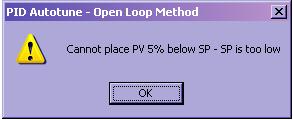
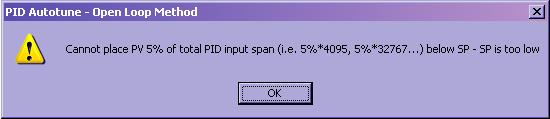
Q: When trying to Autotune a PID loop, the message "Cannot place PV
5% below SP - SP is too low" is unclear.
A: We changed the message to be much more descriptive in
DirectSOFT v4.0 Build 22:
Before v4.0 Build 22:
After v4.0 Build 22:
DirectSOFT FAQ0113
24-Sep-2003
Q: I configured my PID loop to use the Auto Transfer for my analog
output card, but, my analog output card is not working properly.
A: Most of the time this is because having configured the Auto
Transfer for that analog output card, you are also trying to use the
pointer method of output to the same card. Therefore, we added the
following warning message in DirectSOFT v4.0 Build 22 to help
circumvent this from happening:
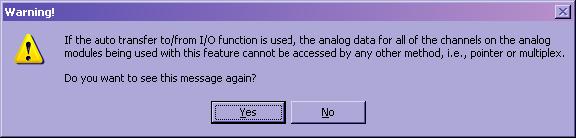
In later versions of DirectSOFT (i.e. > v4.0 Build 22) the above text will also include the following additional text, "In other words, if you select auto transfer to/from I/O, do not setup the analog in the ladder code. If you setup the analog in the ladder code, do not select auto transfer to/from I/O."
DirectSOFT FAQ0114
04-Nov-2002
Q: When trying to save a project I get "Filter error writing PLC
type."
A: This is more than likely a self-inflicted "wound" in that the
folder name for an open project must've been changed and then a Save
As... was attempted.
DirectSOFT FAQ0115
30-Sep-2003
Q: When trying to Configure I/O keep getting "Error reading from
disk."
A: This could be caused by:
However, the probable solution is just to Export the project and then Import it back. Or, sometimes deleting the TLS file, opening the project, and then resaving it works.
DirectSOFT FAQ0116
01-Nov-2003
Q: Can I make a DirectSOFT link over a VPN (Virtual Private
Network) to an ECOM?
A: This should work. However the NetEdit tool nor the
DirectSOFT Link Wizard will help because they utilize broadcasts; and
VPNs will block broadcasts. So the only link-aiding tool you will have
is the Ping command from a Command Prompt. If the VPN is set up such
that you can Ping the remote ECOM, this should work. You may have to
adjust the timeout values for the link, however.
DirectSOFT FAQ0117
03-Nov-2003
Q: PC crashed while transferring a project to the PLC. Now when I
open the project all I get is the comment for the first rung of
ladder logic but nothing else.
A: Whatever caused your PC to crash probably corrupted the
project file. If DirectSOFT isn't locked up then you can try a File
--> Export and then a File --> Import to see if this clears up
the project. Otherwise you will either have to start from a previous
backup copy (hopefully!) or start all over from scratch (yikes!).
Unfortunately this is the nature of a PC crash and there is no way to
UN-corrupt your project file.
DirectSOFT FAQ0118
09-Jul-2003
Q: Why does DirectSOFT beep at me after opening an offline project
for Koyo Kostac S-series, PZ1 and going into the Edit mode?
A: This was a bug in DirectSOFT related to the options on
the toolbar. To fix download the latest version of DirectSOFT, Build
22 or greater.
DirectSOFT FAQ0119
30-Sep-2009
Q: Using Cut (or Copy) and Paste with Ladder Comments and getting:
"Unable to write comments for rung xxx".
A: DirectSOFT's Cut and Copy do not place the data into the
Windows clipboard, but rather the data is written to temporary files
(CLIPPGM.LBD & CLIPPGM.LBX) that is pointed to by the PROJECT PATH
parameter in the .INI file (DS400.INI for v4.0; DS500.INI for v5.x).
Thus, problems are centered around this fact. Generally this error is
caused by one of the following:
DirectSOFT FAQ0120
21-Nov-2003
Q: Every time I open a project, it tries to connect online to my
PLC, which may or may not be connected. How can I prevent this from
happening?
A: This happens because the project was saved while
connected to the PLC (i.e. it is an ONLINE PROJECT). If you don't want
this to happen, then before you save the project, use PLC -->
Disconnect.
DirectSOFT FAQ0121
21-Nov-2003
Q: Every time I open DirectSOFT it wants to create a new project by
default and I have to close it. Is there a way for it to open up and
not do this?
A: This happens because you did not open DirectSOFT with an
existing project, so it "thinks" you must want to create a new one. If
all you want to do is open up existing projects then the easiest thing
to do is use DS Launch (Start --> Programs --> DirectSOFT32
--> DS Launch). From here DS Launch remembers the projects you had
opened previously and all you have to do is double-click on the
correct project under the Projects icon and DirectSOFT will open up
with this project instead of trying to create a new one.
DirectSOFT FAQ0122
21-Nov-2003
Q: In Ladder View the Syntax Check button is grayed out and I can't
use it. Why?
A: This is because the link you are using is configured for
DirectNet protocol, and DirectNet protocol does not allow this.
With DirectNet protocol:
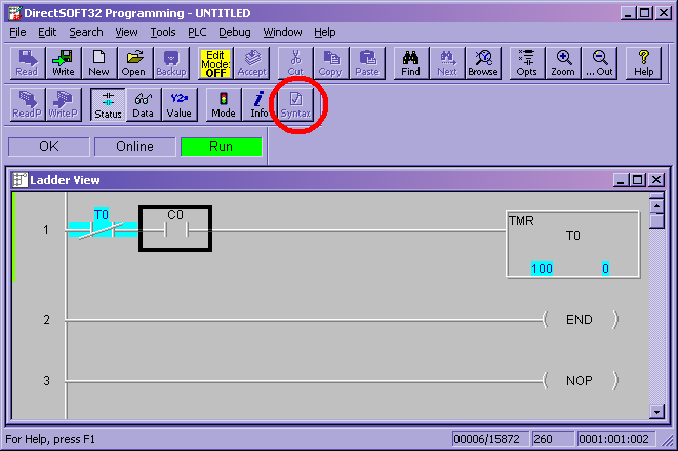
With K-sequence protocol:
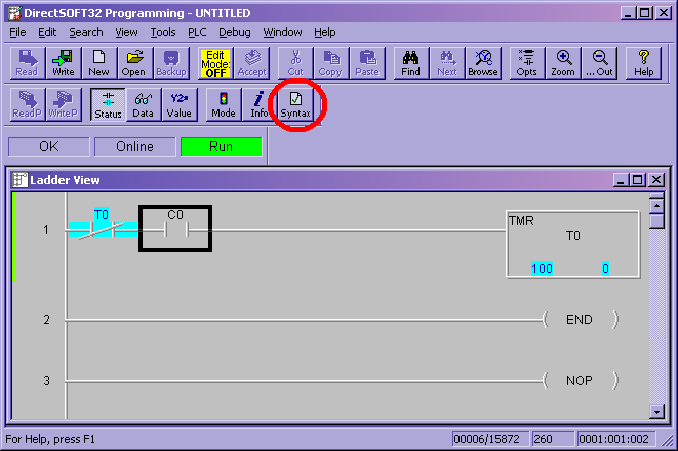
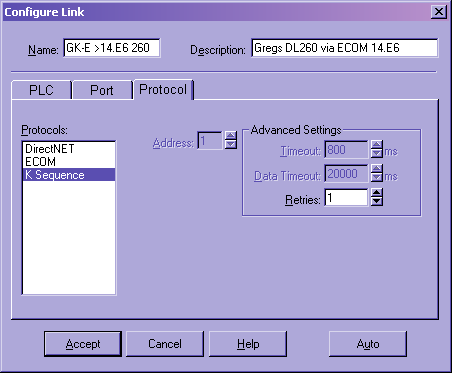
If you will edit the link and change the protocol to K-sequence then the Syntax Check button will work (PLC --> Link Setup... --> Edit... --> Protocol). Or better yet, if you are using an ECOM then pick the ECOM protocol because the ECOM will then use DirectNet when it can and K-sequence when it needs to:
DirectSOFT FAQ0123
21-Nov-2003
Q: When viewing status in Ladders and attempting to use the Change
Value button to change a bit (X, Y, C, etc.), the Write-to-PLC
button is grayed out. Why?
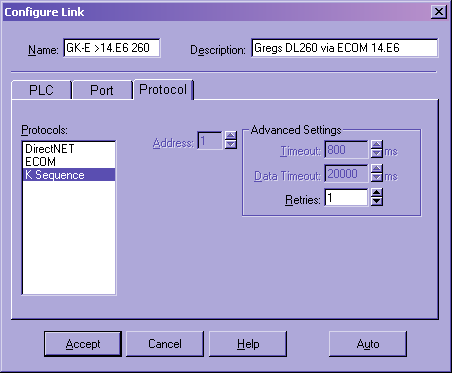
A: This is because the link you are using is configured for
DirectNet protocol, and DirectNet protocol will not allow bit writes.
With DirectNet protocol:
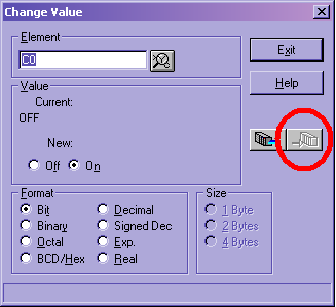
With K-sequence protocol:
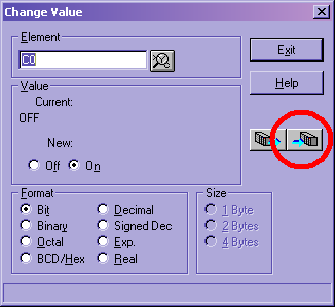
If you will edit the link and change the protocol to K-sequence then the Write-to-PLC button on the Change Value dialog will work (PLC --> Link Setup... --> Edit... --> Protocol). Or better yet, if you are using an ECOM then pick the ECOM protocol because the ECOM will then use DirectNet when it can and K-sequence when it needs to:
DirectSOFT FAQ0124
08-Dec-2003
Q: Can V-memory bits have their own Nicknames, Wiring Information
and Descriptions?
A: Yes. A V-memory address (e.g. V2000) can have its own
documentation as a word; but each of its 16 bits (designated by by
B2000.x; where x is the bit number) can also have their own
documentation. Park the cursor on the B bit in ladders view and then
go to Tools --> Documentation Editor... to edit them.
DirectSOFT FAQ0125 (see
also DS Data FAQ0069)
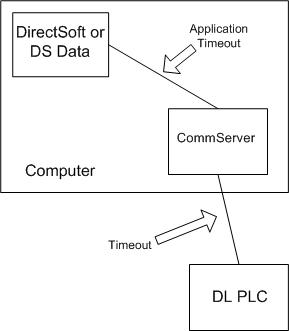
26-Sep-2002
Q: When configuring a link, on the Port tab, Advanced Settings,
what does "Application Timeout" VS "Timeout" mean?
A: Refer to the diagram. "Application Timeout" is the time
the client will wait on the link CommServer for a response. "Timeout"
is the time the CommServer will wait for a response from the PLC.
DirectSOFT FAQ0126
09-Dec-2003
Q: When trying to open a project, I get "Error 1006: Module load
failure = 126 in module c:\DirectSOFT32\Knowbase\KB430M.DLL."
A: The number "126" in this message is a Global Windows
System Error number. Therefore this error is some kind of Windows
system problem. In general "Error 1006" is telling you it couldn't
open the file named and the reason is the Windows System Error, so the
first thing to do is to make sure that the file being named is
actually there. We have also seen other variants of this error that
report different a Windows System Error number and different files.
Here are some we've seen:
The number "31" is designated by Microsoft
as ERROR_GEN_FAILURE.
The number "126" is designated by Microsoft as ERROR_MOD_NOT_FOUND.
The first thing to check is to see if there are any files in your DirectSOFT Projects folder that have the extension of DLL. If there is, delete them.
Secondly, we have found that doing the following steps has made any and all of the rest of the variants of this error disappear even though we admit we don't know specifically why.
DirectSOFT FAQ0127 (see
also DNLoader FAQ0001)
09-Jan-2004
Q: Is there a software utility that can be used to upload/download
programs without using DirectSOFT?
A: Yes. Host Engineering has created a free program called
DNLoader that does just that. You would use it to read the program and
(optionally) the retentive V-memory from a DL PLC and save this data
in a file. This file cannot be read by DirectSOFT. You can then use
DNLoader to write the contents of this file to another DL PLC of the
same type. It supports serial or Ethernet connections and also
supports PLC Passwords. It is the ideal tool for an OEM or System
Integrator. You can download your copy from our website under the
Support --> Utilities section.
DirectSOFT FAQ0128
22-Sep-2009
Q: When a Data View is Exported to a .CSV or .TXT file, it is
always empty (blank)!
A: This is a bug in DirectSOFT v5.3 and earlier, but
fortunately there is a work-around. This only happens if the Data View
you are trying to Export is not docked (i.e. it is floating) to the
main DirectSOFT application frame. Thus, grab the Data View and drag
over to the main DirectSOFT application frame until the docking
graphic appears and release it there. Then the Data View Export should
work just fine. See example pics below:
Notice the Data Views (Data1, Data2),
though grouped together, are still undocked from the main DirectSOFT
application frame:
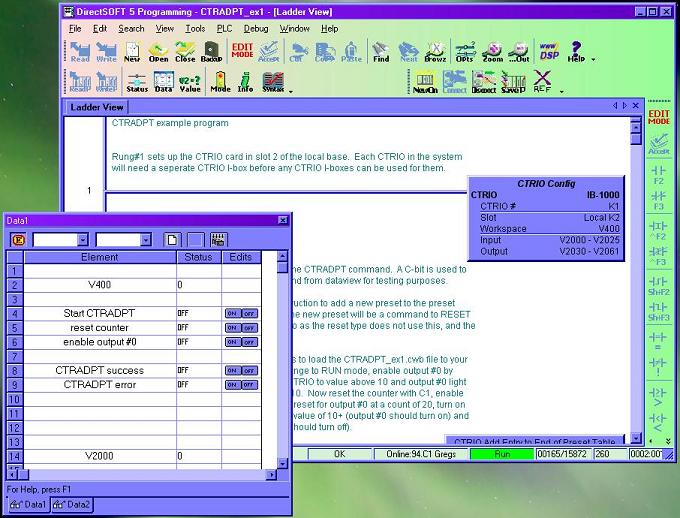
Notice now the Data Views (Data1,
Data2), still grouped together, are now docked to the main DirectSOFT
application frame:
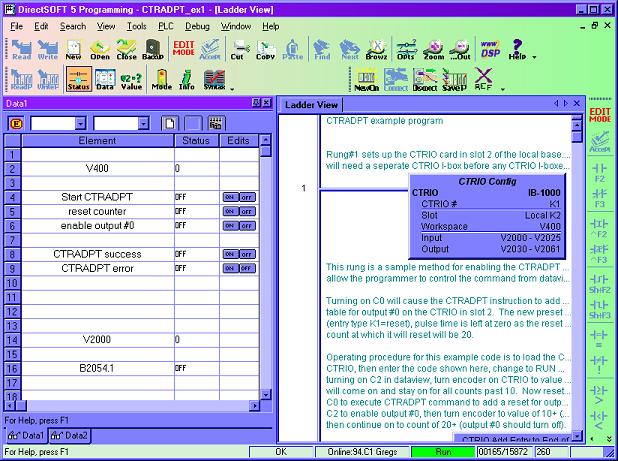
This bug will be fixed in the next release of DirectSOFT5.
DirectSOFT FAQ0129 (see
also DS Data FAQ0070; ECOM FAQ0030; NetEdit FAQ0009)
03-Nov-2002
Q: Does the ECOM work with DHCP? Or does the PC's NIC have to have
a static IP address in order to communicate with an ECOM?
A: The ECOM does not support DHCP addressing, (ECOM100s support
DHCP). The ECOM must have a static IP address. However, the PC that is
talking to the ECOM does not have to have a static IP address. Things
to consider:
DirectSOFT FAQ0130
13-Aug-2002
Q: Can I install DirectSOFT on a LAN Server and then have multiple
PC's run it from there?
A: No. You will need to install the software on each PC that
will be using it. It cannot be run remotely over a LAN system (see
DirectSOFT License Agreement).
DirectSOFT FAQ0131
13-Aug-2002
Q: Is there an annual maintenance agreement for DirectSOFT?
A: No, but there are free upgrades from time to time. The general
rules are:
DirectSOFT FAQ0132 (see
also CTRIO FAQ0045; DL Plus FAQ0010; DNLoader FAQ0011; DS Data
FAQ0102; EBC FAQ0083; ECOM FAQ0084; EDRV FAQ0084; ERM FAQ0058; EZ
Ethernet FAQ0010; General FAQ0004; HA-TADP FAQ0008; Lookout Direct
FAQ0015; NetEdit FAQ0037; PBC FAQ0014; PSCM FAQ0003; SDK FAQ0022;
SERIO FAQ0004; WinPLC FAQ0038)
31-Dec-2009
Q: What is the export classification of your products (e.g. ECCN)
A: None of our products have an ECCN. Automation Direct sells our
products and they export EAR99 NLR (No License Required). ECCN
is Export Controlled Classification Number and none of our
products are controlled.
DirectSOFT FAQ0133
16-Feb-2004
Q: Is there a quick reference as to which PLC instructions work on
which PLCs?
A: Yes. You can access a matrix in DirectSOFT by going to Help
--> PLC/Instruction Set Matrix, or a PDF version of this matrix can
be downloaded for printing here.
DirectSOFT FAQ0134 (see
also DL Plus FAQ0002)
15-Oct-2002
Q: DL Plus v3.0 installed on PC; loaded DirectSOFT v4.0. Now when
clicking on DL Plus object to add it, then Lookout (NI v3) crashes.
A: Cannot run DirectSOFT v4.0 and DL Plus v3.0 simultaneously.
They use two different CommServers and this will cause a conflict.
DirectSOFT FAQ0135 (see
also DL Plus FAQ0003; Lookout Direct FAQ0006)
15-Oct-2002
Q: My DL Plus and Lookout Direct do not support the DL06, DL250-1
nor the DL260 CPUs. If, however, I install DirectSOFT v4.0 (which
supports these CPUs) will my DL Plus and Lookout Direct now be able
to talk to them?
A: Here are the general "rules:"
However:
DirectSOFT FAQ0136
10-Oct-2002
Q: DirectSOFT project has been stored on a file server. However,
if the project is open and the file server happens to reboot, the
project gets deleted!
A: This is caused by a bug check procedure by DirectSOFT. We have
fixed this in DirectSOFT v3.0c Build 80 and v4.0 Build 16. However,
the files, instead of getting deleted, could still become corrupted
because the file server should never be rebooted while files are
opened on it.
DirectSOFT FAQ0137
14-Oct-2002
Q: If I use PLC --> Clear PLC Memory... --> Clear All the
C-bits in my DL250 or DL260 do not get cleared.
A: This was fixed in DirectSOFT v3.0 Build 18 and v4.0 Build 18.
DirectSOFT FAQ0138
12-Sep-2002
Q: My Cross Reference table is corrupt. How can I fix it?
A: The best and easiest way is to force DirectSOFT to rebuild it
for you:
DirectSOFT FAQ0139
12-Sep-2002
Q: What are the main advantages of upgrading my DirectSOFT from
v3.0 to v4.0?
A: The main reasons:
DirectSOFT FAQ0140
18-Nov-2022
Q: Which versions of DirectSOFT work with which versions of
Windows?
A: See chart below:
| DirectSOFT Versions |
Windows Operating Systems | ||||||||||||||
| Win3.11 | Win95 | Win98 | WinME | WinNT4 | Win2K | WinXP | WinXP64 | WinVista | WinVista64 | Win7(2) | Win8(2)(3) | Win8.1 | Win10 | Win11 | |
| v1.12i | Y | Y | Y | Y | |||||||||||
| v2.0 | Y | Y | Y | Y | |||||||||||
| v2.1 | Y | Y | Y | Y | |||||||||||
| v2.2 | Y | Y | Y | Y | |||||||||||
| v2.3 | Y | Y | Y | Y | |||||||||||
| v2.3a | Y | Y | Y | Y | |||||||||||
| v2.4 | Y | Y | Y | Y | |||||||||||
| v2.4a | Y | Y | Y | Y | |||||||||||
| v3.0 | Y | Y | Y | Y | Y | (1) | Y | (1) | (1) | (1) | (1) | (1) | (1) | ||
| v4.0 | Y | Y | Y | Y | Y | (1) | Y | (1) | Y | (1) | (1) | (1) | (1) | ||
| v5.x | (1) | (1) | Y | Y | Y | (1) | Y | Y | Y | Y | (1) | (1) | (1) | ||
| v6.x | (1) | (1) | (1) | Y | Y | (1) | Y | Y | Y | Y | Y | Y | Y | ||
NOTES:
(1) - Have
not tested officially but probably will work.
(2) - Both 32-bit and
64-bit versions work.
(3) - Win8 RT
version not supported.
DirectSOFT FAQ0141
15-Oct-2002
Q: Getting error message: "Permanent project <filename> will
be overwritten! Continue?"
A: You are trying to use the New Project dialog to open an
existing project name. You probably pressed the <Browse> button
in this dialog and selected the name of an existing project. You need
to do one of the following:
DirectSOFT FAQ0142
15-Oct-2002
Q: Will DirectSOFT support a PCMCIA COM port card?
A: It is up to this device's drivers to make the PCMCIA COM port
card look and act exactly like a regular PC COM port. If it does a
sufficient job, then DirectSOFT would not be able to distinguish it
from a regular PC COM port. But since we have improved DirectSOFT's
CommServer it is best to use the very latest version of DirectSOFT as
possible.
DirectSOFT FAQ0143
09-Oct-2002
Q: Will DirectSOFT damage other .PRJ files that are used by other
programs (e.g. Exor Uniop HMI)?
A: No, it will just simply not be able to open them.
DirectSOFT FAQ0144
09-Oct-2002
Q: Can't use Cut/Paste in DS Launch description window.
A: Cut/Paste is not supported in this window. It is merely for
information only, and not for editing.
DirectSOFT FAQ0145
18-Oct-2002
Q: When doing a compare in DirectSOFT why does it not do 100% of
the files?
A: DirectSOFT compares binary files, not text files. When it
finds a difference, it tries to do some intelligent work to see what
is different (e.g. extra rung, extra contact, etc.) Doing this for
every possible difference could take a huge amount of time because it
is possible for the entire program to be different. So a solution (if
you are using v4.0) would be to do a File --> Export to a text file
and then use your favorite text comparison utility.
DirectSOFT FAQ0146
21-Oct-2002
Q: When using the DL05 with MC (Memory Cartridge), calendar
function is not highlighted.
A: Must have at least DirectSOFT v3.0 Build 33 for this to be
supported.
DirectSOFT FAQ0147
22-Oct-2002
Q: DirectSOFT seems to freeze briefly sometimes on WinXP.
A: This happens with other applications on WinXP as well. If you
go to http://www.computing.net website and search for "freeze" on
WinXP you will find several problems and issues and some work-arounds.
Some think it is USB device code and/or device drivers for WinXP. We
know this does not solve the problem, but we don't know what else to
do. DirectSOFT works well on Win2K and Win98, but WinXP is really
different. But if anyone reading this hears of any systemic issues
with WinXP, then please let us know!
DirectSOFT FAQ0148
22-Oct-2002
Q: If you use the Save As... for the Data View DirectSOFT saves
the file to the different filename but it doesn't change the title
bar.
A: Known bug fixed in v4.0 Build 18.
DirectSOFT FAQ0149
06-Jan-2010
Q: Does DirectSOFT write to non-volatile (Flash ROM) when using
Data View, Change Value and Memory Editor?
A: Not on purpose. In other words, it is not a function of which
tool you use (Data View VS Change Value VS Memory Editor), it is
rather a function of the protocol (K-sequence VS DirectNET) of the
link in DirectSOFT that is being used to write to the memory location.
DirectSOFT just performs a "write to memory" operation and is
unaware that it goes to RAM and/or to both Flash ROM and RAM.
Automation Direct has a document that helps explain non-volatile memory. You can download a copy of it below:
DirectSOFT FAQ0150
07-Nov-2002
Q: Can I permanently turn off the Ladder palette?
A: Yes, this capability was added to v4.0 Build 18 and later. To
change this you must edit DirectSOFT's DS500.INI file and add or
change the LadderPalette parameter:
- To pull up the .INI file for editing, see DirectSOFT
FAQ0204.
- To edit the LadderPalette parameter in the .INI file, see
DirectSOFT FAQ0008.
DirectSOFT FAQ0151
07-Nov-2002
Q: How can I make the icons in DirectSOFT small instead of large?
A: The size is only selectable in DirectSOFT v4.0. We removed
this ability in DirectSOFT v5.0. You must edit DirectSOFT's DS400.INI
file to add or change the UseLargeBtns parameter:
- To pull up the .INI file for editing, see DirectSOFT
FAQ0204.
- To edit the UseLargeBtns parameter in the .INI file, see
DirectSOFT FAQ0008.
DirectSOFT FAQ0152
17-Sep-2002
Q: Why don't the Toolbar buttons' colors match the color status
bars in Ladder View?
A: This was a great suggestion. We updated the arrow button
colors to match Ladder edit save/download color status: Cyan = Write
to PLC; Light Green = Write to Disk.

DirectSOFT FAQ0153
13-Nov-2002
Q: Importing a project and get, "Filter error: Reading Program
Size."
A: The only time we've seen this happen is when the import file
actually has two programs stored in it. Edit the file and eliminate
the unwanted program. Why is there more than one program in the file?
DirectSOFT FAQ0154
14-Nov-2002
Q: What is the maximum length of a project path and filename?
A: This is not a limitation of DirectSOFT but rather a function of the
Windows operating system.
DirectSOFT FAQ0155 (see
also DS Data FAQ0074)
15-Nov-2002
Q: Are there any plans for a DS Data, or DirectSOFT version for
Pocket PCs (WinCE)?
A: Not as of 2004; but we are considering it.
DirectSOFT FAQ0156
02-Dec-2002
Q: My DL405 PLC seems to hang up in Pause Mode when DirectSOFT is
doing a download of the program (Ladders).
A: The only way to get stuck in Pause Mode is by doing a Runtime
Edit. When in the Run Mode, the PLC supports Runtime Edit. DirectSOFT
will switch to Pause Mode, download the program, then switch back to
Run Mode. The PLC does a syntax check before going to Run and this is
probably where the "hang up" is occurring. For example, if you had a
GTS instruction without the SBR instruction, or a JMP instruction
without the SG instruction, etc. the syntax check would fail. You can
test this by just trying to go to the Run Mode, or, from DirectSOFT,
trying a manual syntax check to see if it fails.
DirectSOFT FAQ0157
02-Dec-2002
Q: My Cross Reference table does not show the use of V-memory in
the V7000 range (System Memory).
A: By default, older versions of DirectSOFT did not enable the
System V-memory range for Cross Reference. You can fix this via 2
ways:
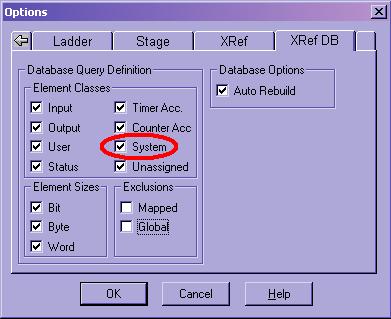
DirectSOFT FAQ0158
13-Apr-2004
Q: What happens if I install certain DirectSOFT packages over top
of different versions with different levels of DL PLC support?
A: Please refer to the following chart:
| INSTALL: | ||||||||||||
| DirectSOFT v3.0 | DirectSOFT v4.0 | |||||||||||
| START WITH | PC-PGM-105 | PC-PGM-205 | PC-PGM-305 | PC-R30-U | PC-PGMSW | PC-PGM-105 | PC-PGM-BRICK | PC-PGM-205 | PC-PGM-305 | PC-R40-U | PC-PGMSW | |
| Nothing | Installs v3.0 DL105 in DirectSOFT32 | Installs v3.0 DL205 in DirectSOFT32 | Installs v3.0 DL305 in DirectSOFT32 | Installs nothing. | Installs v3.0 for all DL PLCs in DirectSOFT32 | Installs v4.0 DL105 in DirectSOFT4 | Installs v4.0 DL05, DL06, DL105 in DirectSOFT4 | Installs v4.0 DL205 in DirectSOFT4 | Installs v4.0 DL305 in DirectSOFT4 | Installs nothing. | Installs v4.0 for all DL PLCs in DirectSOFT4 | |
| DirectSOFT v3.0 | PC-PGM-105 | Updates v3.0 | Updates v3.0; adds DL205 | Updates v3.0; adds DL305 | Updates v3.0 | Updates v3.0; adds all DL PLCs | Leaves v3.0 DL105 alone; installs v4.0 DL105 in DirectSOFT4 | Leaves v3.0 DL105 alone; installs v4.0 DL05, DL06, DL105 in DirectSOFT4 | Leaves v3.0 DL105 alone; installs v4.0 DL205 in DirectSOFT4 | Leaves v3.0 DL105 alone; installs v4.0 DL305 in DirectSOFT4 | Leaves v3.0 DL105 alone; installs v4.0 DL105 in DirectSOFT4 | Leaves v3.0 DL105 alone; installs v4.0 for all DL PLCs in DirectSOFT4 |
| PC-PGM-205 | Updates v3.0; adds DL105 | Updates v3.0 | Updates v3.0; adds DL305 | Updates v3.0 | Updates v3.0; adds all DL PLCs | Leaves v3.0 DL205 alone; installs v4.0 DL105 in DirectSOFT4 | Leaves v3.0 DL205 alone; installs v4.0 DL05, DL06, DL105 in DirectSOFT4 | Leaves v3.0 DL205 alone; installs v4.0 DL205 in DirectSOFT4 | Leaves v3.0 DL205 alone; installs v4.0 DL305 in DirectSOFT4 | Leaves v3.0 DL205 alone; installs v4.0 DL205 in DirectSOFT4 | Leaves v3.0 DL205 alone; installs v4.0 for all DL PLCs in DirectSOFT4 | |
| PC-PGM-305 | Updates v3.0; adds DL105 | Updates v3.0; adds DL205 | Updates v3.0 | Updates v3.0 | Updates v3.0; adds all DL PLCs | Leaves v3.0 DL305 alone; installs v4.0 DL105 in DirectSOFT4 | Leaves v3.0 DL305 alone; installs v4.0 DL05, DL06, DL105 in DirectSOFT4 | Leaves v3.0 DL305 alone; installs v4.0 DL205 in DirectSOFT4 | Leaves v3.0 DL305 alone; installs v4.0 DL305 in DirectSOFT4 | Leaves v3.0 DL305 alone; installs v4.0 DL305 in DirectSOFT4 | Leaves v3.0 DL305 alone; installs v4.0 for all DL PLCs in DirectSOFT4 | |
| PC-PGMSW | Updates v3.0 | Updates v3.0 | Updates v3.0 | Updates v3.0 | Updates v3.0 | Leaves v3.0 alone; installs v4.0 DL105 in DirectSOFT4 | Leaves v3.0 alone; installs v4.0 DL05, DL06, DL105 in DirectSOFT4 | Leaves v3.0 alone; installs v4.0 DL205 in DirectSOFT4 | Leaves v3.0 alone; installs v4.0 DL305 in DirectSOFT4 | Leaves v3.0 alone; installs v4.0 for all DL PLCs in DirectSOFT4 | Leaves v3.0 alone; installs v4.0 for all DL PLCs in DirectSOFT4 | |
| DirectSOFT v4.0 | PC-PGM-105 | Leaves v4.0 DL105 alone; installs v3.0 DL105 in DirectSOFT32 | Leaves v4.0 DL105 alone; installs v3.0 DL205 in DirectSOFT32 | Leaves v4.0 DL105 alone; installs v3.0 DL305 in DirectSOFT32 | Installs nothing | Leaves v4.0 DL105 alone; installs v3.0 for all DL PLCs in DirectSOFT32 | Updates v4.0 | Updates v4.0; adds DL05, DL06 | Updates v4.0; adds DL205 | Updates v4.0; adds DL305 | Updates v4.0 | Updates v4.0; adds all DL PLCs |
| PC-PGM-BRICK | Leaves v4.0 DL05, DL06, DL105 alone; installs v3.0 DL105 in DirectSOFT32 | Leaves v4.0 DL05, DL06, DL105 alone; installs v3.0 DL205 in DirectSOFT32 | Leaves v4.0 DL05, DL06, DL105 alone; installs v3.0 DL305 in DirectSOFT32 | Installs nothing | Leaves v4.0 DL05, DL06, DL105 alone; installs v3.0 for all DL PLCs in DirectSOFT32 | Updates v4.0 | Updates v4.0 | Updates v4.0; adds DL205 | Updates v4.0; adds DL305 | Updates v4.0 | Updates v4.0; adds all DL PLCs | |
| PC-PGM-205 | Leaves v4.0 DL205 alone; installs v3.0 DL105 in DirectSOFT32 | Leaves v4.0 DL205 alone; installs v3.0 DL205 in DirectSOFT32 | Leaves v4.0 DL205 alone; installs v3.0 DL305 in DirectSOFT32 | Installs nothing | Leaves v4.0 DL205 alone; installs v3.0 for all DL PLCs in DirectSOFT32 | Updates v4.0; adds DL105 | Updates v4.0; adds DL05, DL06, DL105 | Updates v4.0 | Updates v4.0; adds DL305 | Updates v4.0 | Updates v4.0; adds all DL PLCs | |
| PC-PGM-305 | Leaves v4.0 DL305 alone; installs v3.0 DL105 in DirectSOFT32 | Leaves v4.0 DL305 alone; installs v3.0 DL205 in DirectSOFT32 | Leaves v4.0 DL305 alone; installs v3.0 DL305 in DirectSOFT32 | Installs nothing | Leaves v4.0 DL305 alone; installs v3.0 for all DL PLCs in DirectSOFT32 | Updates v4.0; adds DL105 | Updates v4.0; adds DL05, DL06, DL105 | Updates v4.0; adds DL205 | Updates v4.0 | Updates v4.0 | Updates v4.0; adds all DL PLCs | |
| PC-PGMSW | Leaves v4.0 alone; installs DL105 in DirectSOFT32 | Leaves v4.0 alone; installs DL205 in DirectSOFT32 | Leaves v4.0 alone; installs DL305 in DirectSOFT32 | Installs nothing | Leaves v4.0 alone; installs v3.0 for all DL PLCs in DirectSOFT32 | Updates v4.0 | Updates v4.0 | Updates v4.0 | Updates v4.0 | Updates v4.0 | Updates v4.0 | |
(1) All
OEM packages act like their "only" (e.g. -205, -305, etc.) package
counterparts.
(2) Service Packs do not install additional DL PLC
support; they only upgrade the installed support levels.
(3) If you have DirectSOFT v1.0 and/or v2.0 packages they
act like the v3.0 packages do in the chart above.
DirectSOFT FAQ0159
06-Dec-2002
Q: My Cross Reference table does not show the use of VC-memory.
A: By default, older versions of DirectSOFT excluded mapped and
global memory range for Cross Reference. You can fix this via 2 ways:
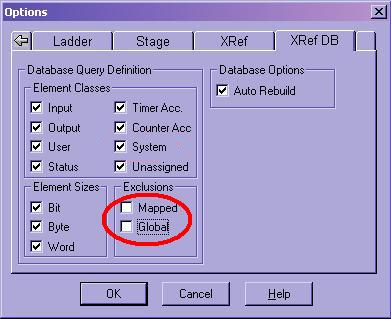
DirectSOFT FAQ0160
09-Dec-2002
Q: How does the Trap Monitor function work?
A: You use Trap Monitor in DL06, DL240, DL250, DL250-1, DL260,
DL350, DL445, DL445B, DL450, SU5M, SU6M and SU6H to diagnose problems
by showing the contents of the PLC accumulator, stack and element
values at specific addresses. The PLC has to be in the Test Mode.
Also, it doesn't work with ECOM in DL205 system. The Trap
Monitor function was broken in DirectSOFT v3.0 Build 80 but
works in DirectSOFT v4.0 Build 18 or later.
DirectSOFT FAQ0161
10-Dec-2002
Q: Will DirectSOFT work with Ethernet-to-Serial converter devices?
A: Probably, but each product is different and each installation
is different. There are too many products that would have to be tested
in order to give an emphatic "yes" answer to this question; therefore
Host Engineering does not make any recommendations. It is the
responsibility of the device to make it look and act like a regular
serial port; or regular Ethernet NIC.
DirectSOFT FAQ0162
10-Dec-2002
Q: Will DirectSOFT run on a 200MHz or slower PC?
A: Yes, but the performance will be less than satisfactory. The
minimum requirement we list is a Pentium III Class / 500MHz.
DirectSOFT FAQ0163 (see
also CTRIO FAQ0051; ERM FAQ0032)
10-Dec-2002
Q: Will DirectSOFT work on Win95 32-bit OS?
A: We have seen this work on a few and not work on others. If it
doesn't work we do not know of anything that can be done to make it
work. However CTRIO Workbench and ERM Workbench will not even install
if the InstallShield engine (used to install DirectSOFT) recognizes
that the PC is Win95.
DirectSOFT FAQ0164
12-Dec-2002
Q: By default, the DirectSOFT install puts an icon on my Desktop.
A: This behavior was changed in DirectSOFT v4.0 Build 20 (and
later) to ask the user if he wants to put the DS Launch icon on the
desktop or not instead of doing automatically.
DirectSOFT FAQ0165
30-Dec-2002
Q: What is the best way to copy a project to another location?
A: DirectSOFT project files are all named the same filename but
with different extensions. Therefore the easiest thing to do is to
just browse to the folder where your project is stored using Windows
Explorer and select all the files there and Copy them. Then browse to
the new location and Paste them there.
DirectSOFT FAQ0166
21-Jan-2003
Q: Downloading to DL405 and sometimes get "Processing Op codes"
message for a very long time.
A: When this message is displayed DirectSOFT is compiling the
instructions into usable opcodes for the PLC. If this happens for a
long time then chances are the project is corrupt. Try using File
--> Export --> Program..., closing DirectSOFT, reopening
DirectSOFT and then File --> Import --> Program... to see if
this fixes it.
DirectSOFT FAQ0167
20-Jan-2003
Q: Using File --> Export --> Documentation... and getting
"Error on line 74 ("C10", "R1-In Line", "", ""), Data error;
NickName field "R1-In Line" illegal, field is a valid PLC Type/ID;
example: X7 cannot be a nickname for Y4."
A: This is a bug in DirectSOFT. The problem is that the NickName
"R1" is being interpreted by DirectSOFT as meaning "a real number(R)
with the value of 1." There are two ways to fix this:
DirectSOFT FAQ0168
04-Feb-2003
Q: Sometimes I see the Edit Toolbar turned on but the Edit Mode
button is off!
A: This is a bug. DirectSOFT v4.0 Build 20 fixes this.
DirectSOFT FAQ0169
07-Feb-2003
Q: In Xref View for my DL06 project some of my valid V-memory
addresses show up as CTAs (e.g. V1200 displays as CTA200).
A: This is a bug. DirectSOFT v4.0 Build 20 fixes this.
DirectSOFT FAQ0170 (see
also DS Data FAQ0084)
19-Nov-2002
Q: I need to make changes to my DS500.INI (or DS400.INI or
DS300.INI) file but I can't edit it.
A: This is probably because the file is in the Windows folder and
you do not have Admin privileges. We plan on either eliminating the
need for this critical file in later versions of DirectSOFT (probably
v6.0) and DS Data, or putting it in a folder where Admin privileges
are not required to edit it. But for now, you will have to have your
Administrator help you out.
DirectSOFT FAQ0171
30-Dec-2002
Q: In my DL450 project I am getting "E453 - Missing Timer or
Counter at address 7" & "E464 - Missing Circuit at address 12,"
yet at these addresses those instructions are not present.
A: This is a bug in the DL450 firmware. You need to upgrade the
DL450 to firmware v2.00.
DirectSOFT FAQ0172
14-Feb-2003
Q: The default Retentive V-memory Range for the DL06 and DL260 is
set to only V700-37777.
A: This was a setting that was wrong in DirectSOFT. The default
should be V400-37777. This was corrected in DirectSOFT v4.0 Build 20.
DirectSOFT FAQ0173
11-Mar-2003
Q: If I merge rungs in Ladders, the Rung Comments don't merge with
them; instead the Rung Comments are lost!
A: Unfortunately this consistent with DirectSOFT's v1.0-v4.0
Documentation Editor design. This type of thing, however, is being
redesigned for DirectSOFT v5.0 so that when a rung merge occurs, the
Rung Comments are also merged.
DirectSOFT FAQ0174
01-Apr-2003
Q: If I switch between PID loops in PID View it causes the Auto
Transfer I/O to go on and off.
A: This was a bug in DirectSOFT that was fixed in v4.0 Build 20.
DirectSOFT FAQ0175
29-Sep-2004
Q: Is DirectSOFT compliant with EN 61131-3 and/or IEC 1131-3
standards?
A: No, and there are no plans for making it so at this time.
DirectSOFT FAQ0176 (see
also ECOM FAQ0110; NetEdit FAQ0039)
12-May-2010
Q: When setting up E-mail for the ECOM100, is it necessary that the
SMTP Server IP Address be a "name" instead of a static IP?
A: No, this is not possible. This would require that the ECOM100
support the DNS protocol, which it doesn't. Instead the ECOM100 was
designed to send e-mail to an e-mail server on its own LAN which
normally has a static IP address.
If all you have is a name to work with, then you can find the static IP by doing the following:
Replace, <name> with your e-mail server's DNS name. When this is executed, you will see something like:
Pinging <name> [<IP Address>] with 32 bytes of data:
Reply from <IP Address>: bytes=32 time=205ms TTL=55
Reply from <IP Address>: bytes=32 time=254ms TTL=55
Reply from <IP Address>: bytes=32 time=215ms TTL=55
Reply from <IP Address>: bytes=32 time=266ms TTL=55
Ping statistics for <IP Address>:
Packets: Sent = 4, Received = 4, Lost = 0 (0% loss),
Approximate round trip times in milli-seconds:
Minimum = 205ms, Maximum = 266ms, Average = 235ms
The IP address contained in the brackets after the server's DNS name is the static IP of your e-mail server.
DirectSOFT FAQ0177
11-Oct-2004
Q: If using the Memory Editor and make some changes to Counter or
Timer values and write them to disk (using the button), how come
these values do not get written down to the PLC when I do a File
--> Save Project --> to PLC like it does when I edit regular
V-memory?
A: Timer/Counter accumulator values are not part of "User
V-memory" or "System V-memory" and so they are not written as part of
the project when you do the File --> Save Project --> to PLC,
regardless of whether they were saved/edited using the Memory Editor,
Data View, handheld programmer, etc. Thus, to write these values you
simply have to read them from the file with the Memory Editor <Read
from Disk> button and then write them manually to the PLC with the
<Write to PLC> button.
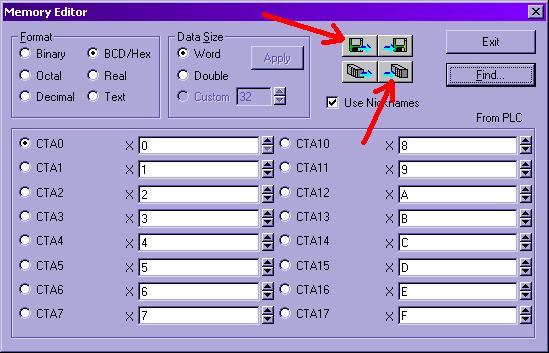
DirectSOFT FAQ0178
13-Oct-2004
Q: When I write my program down to the PLC using the
<Write-to-PLC> button, why does it take a much longer time to
do this in PROGRAM mode than it does in RUN mode?
A: The DL05, DL06 & DL205 CPUs' firmware is coded to work this
way. RUN mode is considered more critical. Basically, RUN-mode writes
go directly to RAM as a single big chunk, then, as a whole are written
to the flash memory all at one time. This is very fast and efficient.
However, PROGRAM-mode writes go into RAM about 128 bytes at a time. In
other words, the CPU gets about 128 bytes then writes the entire area
to flash memory, then gets another 128 bytes, writes the entire flash,
etc. etc. This is because of the firmware coding in the DL CPU and not
DirectSOFT. In the DL405 family, both modes will take an equal amount
of time to write.
DirectSOFT FAQ0179
29-Nov-2004
Q: In the Ladder View the following display problems occur: Timers
(TMR) show up as 00206; Counters (CTR) show up as 00111; C-bits (C)
show up as 00077.
A: These numbers happen to be the opcodes for these elements. This
is probably a symptom of a corrupt knowledgebase file. Possible
solutions are:
- Upgrade your DirectSOFT to the latest
Build (in hopes that the corrupted file will be overwritten).
- Uninstall and then reinstall DirectSOFT completely.
DirectSOFT FAQ0180 (see
also DS Data FAQ0087; NetEdit FAQ0012; EBC FAQ0052; ECOM FAQ0040; EDRV
FAQ0010; ERM FAQ0034; EZ Ethernet FAQ0026)
27-Apr-2004
Q: Getting various errors when attempting to use NetEdit to see or
establish a link to a Host Ethernet device.
A: Here are know errors and their suggested solutions:
CAUTION: You may want to consult your Network Administrator before doing any of the solutions below! He/she may not want you to change your PC's setup at all!
(5) "Error reading
configuration values from device."
First of all, there was a bug in
versions of NetEdit previous to v3.1, that when you pressed the
Query Network button this error could pop up. If this is the case
then you just need to download a later copy (at least v3.1) of
NetEdit from our website. If this is not the case then
notoriously, this error is caused by one of the following:
If none of these things fix the
problem, then it is possible that the EBC/ECOM/EDRV/ERM/EZ Ethernet
device is defective and you may need to send it in for repair.
DirectSOFT FAQ0181 (see
also ECOM FAQ0028; EBC FAQ0033, ERM FAQ0020, EDRV FAQ0007, EZ Ethernet
FAQ0017; DS Data FAQ0088; SDK FAQ0012; NetEdit FAQ0013)
20-Jul-2018
Q: What Ethernet protocols are used by your products?
A: Refer to chart below:
| Product | Ethernet Protocols | ||||||||||||||
| UDP/IP | IPX | TCP/IP | Raw Ethernet Broadcast (1) | ||||||||||||
| K-seq | DirectNet | ECOM (2) | Koyo Backplane | User Defined Data | Proprietary (1) | K-seq | DirectNet | ECOM (2) | Proprietary (1) | Modbus TCP Master | Modbus TCP Slave | Proprietary (1) | Koyo Backplane | ||
| Hardware | ECOM | Y | Y | Y | Y(3) | Y(4) | Y | Y | Y | Y(5) | |||||
| ECOM100 | Y | Y | Y | Y(3) | Y(4) | Y | Y | Y | Y(6) | Y | Y(5) | ||||
| EBC | Y | Y | |||||||||||||
| EBC100 | Y | Y | Y | ||||||||||||
| ERM | Y(7) | Y(7) | (8) | ||||||||||||
| EDRV | Y | Y | Y(12) | ||||||||||||
| EZ Ethernet | Y | Y | Y | Y | Y | Y | |||||||||
| EZ EtherPLUS | Y | Y | Y | Y | Y | Y | Y | ||||||||
| WinPLC | Y | ||||||||||||||
| Software | DirectSOFT | Y | Y | Y | Y | Y | |||||||||
| DS Data | Y | Y | Y | Y | Y | Y | |||||||||
| Ethernet SDK | Y(9) | Y | Y | Y(9) | Y | Y | |||||||||
| NetEdit | Y(10) | Y(11) | Y(10) | Y(11) | |||||||||||
(1)
Not an industry standard. However, protocol is available for 3rd-party
development upon request.
(2) Not really a distinct protocol. This setting is used
to intelligently pick K-sequence or DirectNet as needed by the
hardware/software.
(3) Used when doing ECOM-to-ECOM via RX/WX instructions
with RX/WX Node Map configured in sending ECOM.
(4) Used when doing ECOM-to-PC (Report-by-Exception) via
RX/WX instructions (Address 90 only) with ECOM's dipswitch 7 set ON.
(5) Used when doing ECOM-to-ECOM via RX/WX instructions
without RX/WX Node Map configured in sending ECOM.
(6) RX/WX Node Map must be configured in ECOM.
(7) ERM can talk to one slave with UDP/IP and another
with IPX simultaneously.
(8) No longer in planning (i.e. canceled).
(9) Requires K-sequence protocol spec (request from
Automation Direct)
(10) Uses K-sequence to perform "Test CPU Access!"
function.
(11) Uses this protocol to perform "Show Base
Contents..." function.
(12) The older HA-EDRV2 cannot talk Modbus TCP.
DirectSOFT FAQ0182
13-Jan-2005
Q: When attempting to open a project get, "Cannot open DirectSOFT
program because it was created with a newer version of DirectSOFT
than the one that is currently running."
A: Since we have not changed the format of DirectSOFT projects
from day one, then this error message is probably due to a corrupt
project. Thus, to fix, hopefully you have a backup copy! Or can
re-upload it from the PLC itself. If this is not the case, then we
might be able to edit it manually and get it back (slim chance!).
Therefore you can e-mail the project that won't open to
support@hosteng.com and we'll give it a try, but the chances are slim
because the file is encrypted thus making manual changes nearly
impossible.
DirectSOFT FAQ0183 (see
also DS Data FAQ0093; EBC FAQ0057; ECOM FAQ0043; EDRIVE FAQ0012; ERM
FAQ0037; EZ Ethernet FAQ0027; NetEdit FAQ0017)
27-Sep-2010
Q: How can I install IPX protocol for my NIC?
A: You can find instructions on how to do this for your
particular operating system by going to Start --> Help &
Support and searching for "Install NWLink." Below are the instructions
from Microsoft for doing this on a WinXP PC. The instructions are
similar for other operating systems (e.g. WinNT, Win98, WinME, Win2K).
To install NWLink IPX/SPX/NetBIOS
Compatible Transport Protocol
(1) Open Network Connections:
(a) Click Start
--> Settings --> Control Panel.
(b) Double-click Network
Connections.
NOTE: You must be a
member of the Administrators group to install protocols. Also, when
IPX is installed it is installed for all your connections. If you
don't want it installed for a certain connection, then right-click
that connection, click Properties and, on either the General
or Networking tab, clear the NWLink IPX/SPX/NetBIOS
Compatible Transport Protocol check box.
(2) Right-click a local area connection, then click Properties.
(3) On the General tab, click Install.
(4) In the Select Network Component Type dialog box,
click Protocol, and then click Add.
(5) In the Select Network Protocol dialog box, click NWLink
IPX/SPX/NetBIOS Compatible Transport Protocol, and then click OK.
IMPORTANT: The IPX/SPX protocol is not available on
WinXP 64-Bit Edition, WinVista or Win7.
DirectSOFT FAQ0184
23-May-2005
Q: What CPUs support the Trap Monitor function?
A: The following DL PLCs support the Trap Monitor function:
DL06
DL240
DL250(-1)
DL260
DL350
DL445
DL445B
DL450
SU5M
SU6M
SU6H
Trap monitor doesn't work with ECOM in DL205 system and it is broken in DirectSOFT v3.0 Build 80 but works in DirectSOFT v4.0 Build 18 or later.
DirectSOFT FAQ0185
15-Sep-2015
Q: When trying to open a project, get "Error 1003 Invalid API
version in module c:\DirectSOFT32\Program\Bin\Prgrm30.DLL."
A: Variants of this error for other versions of DirectSOFT
include:
"...\DirectSOFT4\Program\Bin\Prgrm40.DLL"
"...\DirectSOFT5\Program\Bin\Prgrm50.DLL"
"...\DirectSOFT6\Program\Bin\Prgrm60.DLL"
This error occurs if incompatible versions of DirectSOFT executable files (e.g. EXE, DLL, etc.) have somehow been mixed together. Possible causes of this:
Things to try:
If none of this helps and you don't want to do a Windows OS reinstall, then verify that all DirectSOFT modules are the same version (e.g. 5.2.10). To do this:
This is the main DirectSOFT executable file's version. All other modules installed should have this exact same version. In this Version Browser program, each Application in the upper pane may have several Modules in the lower pane. Thus, to view each version of each module requires that you first select an Application, and then subsequently select each Module listed in the lower pane, noting the Version each time. Keep doing this until you have gone through them all.
In all likelihood, you will discover one or more of the modules with a different version than the DirectSOFT - Programming one. Note this one and report it to us. This will help in fixing the problem.
DirectSOFT FAQ0186
12-Aug-2005
Q: Why does my program take longer to upload in DirectSOFT when my
PLC is in PROGRAM mode but is rather quick in RUN mode?
A: The short answer is probably because your link is using
DirectNET protocol.
The long answer: The speed at which DirectSOFT is able to load a program is dependant upon whether it can find out the program size. Thus for small programs, if the size is at first known, then DirectSOFT only has to read the program based on its length. If DirectSOFT can't find out the size, then it must read the entire program memory length. There are 4 scenarios and their explanations:
| # | LINK PROTOCOL | PLC MODE | DESCRIPTION |
| 1 | K-sequence | RUN | The memory location in the PLC that contains the size of the program was updated during the PROGRAM-to-RUN transition of the PLC. Thus, DirectSOFT can readily read this value and upload the program based on its length. The result is a rather fast upload. |
| 2 | K-sequence | PROGRAM | The memory location in the PLC that contains the size of the program has not been updated yet, and there could've been changes and additions to it since then. Thus, DirectSOFT considers this value to be invalid. But DirectSOFT can use this particular protocol to do a dummy write and a subsequent read. This causes the PLC firmware to update the program-size value. Now, DirectSOFT can read this value and upload the program based on its length. The result is a rather fast upload. |
| 3 | DirectNET | RUN | The memory location in the PLC that contains the size of the program was updated during the PROGRAM-to-RUN transition of the PLC. Thus, DirectSOFT can readily read this value and upload the program based on its length. The result is a rather fast upload. |
| 4 | DirectNET | PROGRAM | The memory location in the PLC that contains the size of the program has not been updated yet, and there could've been changes and additions to it since then. Thus, DirectSOFT considers this value to be invalid. However, unlike the K-sequence protocol, a dummy write and subsequent read does not cause the PLC firmware to update this program-size value if using DirectNET protocol. So DirectSOFT has no way of guaranteeing the length and so must upload all of the PLC program memory. The result is a rather slow upload. |
DirectSOFT FAQ0187
18-Aug-2005
Q: If I download my project with DirectSOFT v3.0 my ISG instruction
works on the PROGRAM-to-RUN transition; but if I download the same
project using DirectSOFT v4.0 the ISG instruction does not work.
A: This is due to 2 things: (1) a bug in DirectSOFT v3.0
and, (2) the Retentive Range setting in your project. To explain:
SOLUTION: Change the Retentive Range setting in your project to NOT preserve the "S" range.
DirectSOFT FAQ0188
02-Mar-2004
Q: Why don't my PID loops get downloaded into the PLC when I do
File --> Write Program --> to PLC?
A: This is because the PID loops themselves are just values in the
System V-memory of the PLC and are not part of the program. In order
to transfer PID loops you must therefore use File --> Save Project
--> to PLC. This will write the PID values down into the PLC's
System V-memory.
DirectSOFT FAQ0189 (see
also ECOM FAQ0049; DS Data FAQ0095)
07-Sep-2005
Q: What kind of security measures can be taken for an ECOM/ECOM100
connected to the Internet?
A: There are no security measures built into the
ECOM/ECOM100 to help with this. The Koyo PLCs have password protection
(the DL205 family even has HMI level passwords), but once the PLC is
unlocked, it is unlocked for anybody to access. Probably the best and
easiest thing is to have your IT (Internet Technology) people set up a
VPN (Virtual Private Network) so that only certain predetermined PCs
can have access to the ECOM/ECOM100's network.
DirectSOFT FAQ0190
07-Sep-2005
Q: If a customer has an OEM-created version of DirectSOFT, can he
download Service Packs and upgrade?
A: Yes. This upgrading will not alter or destroy the
customization that the OEM configured for him.
DirectSOFT FAQ0191
(similar to DNLoader FAQ0006)
04-Feb-2005
Q: DirectSOFT doesn't appear to store the Watchdog timer settings
in the project .PRJ file, or write it back to the PLC.
A: This is true. It is also true for DNLoader. Using
DirectSOFT the value can be stored and written manually, but it is not
stored in project file.
DirectSOFT FAQ0192
28-Oct-2005
Q: Can you assign a Nickname to a K (constant) value?
A: There was an earlier version of DirectSOFT where this was
accidentally allowed. However, this is not only not a good practice,
but it is not allowed in later versions of DirectSOFT.
DirectSOFT FAQ0193
22-Apr-2004
Q: Using DS Launch and double-clicking on a project or a link
gives, "Error 0 - DSP4x.EXE" or "Error 0 - DSP5x.EXE."
A: More than likely this is caused by an installation
problem, or a problem at boot. Thus, first try rebooting the PC to see
if that fixes it. If not, reinstall DirectSOFT.
DirectSOFT FAQ0194
11-Jan-2006
Q: Can the .CSV file export format from DirectSOFT (for EZ Touch)
be used for the C-more panels?
A: Yes. This EZ Touch formatted .CSV can be imported to
C-more by typing the entire filename (including the .CSV file
extension).
DirectSOFT FAQ0195
25-Jul-2006
Q: How can I turn off Automatic Updates in Windows?
A: First of all, you must be logged in as Administrator. The
procedure is basically the same for WinXP, Win2K and WinME. You simply
go to Start --> Settings --> Control Panel and click on the
Automatic Updates icon and then select the option you want.
DirectSOFT FAQ0196
06-Apr-2006
Q: Problems/errors encountered when starting up DirectSOFT v5.0 as
a Windows Limited User or Power User.
A: All of these problems, of course, will go away if you are
Administrator of your PC. This is the simplest solution. If that is
not possible the following errors may occur:
If the above errors are encountered try one or more of the following as possible solutions:
DirectSOFT FAQ0197 (see
also NetEdit FAQ0026; ECOM FAQ0082)
29-Aug-2006
Q: When using NetEdit v3.6b (or earlier), the ECOM/ECOM100 won't
pass the CPU Test, but I can still make and use a link from
DirectSOFT.
A: This was caused by NetEdit v3.6b (and earlier) using a slightly
different method to test for CPU than DirectSOFT. This was fixed in:
NetEdit 3.6c (and later)
DirectSOFT FAQ0198
26-Feb-2007
Q: Can the font for Data View be changed?
A: No, this font is hard-coded.
DirectSOFT FAQ0199
09-Mar-2007
Q: Why is it when I try to print the XRef view I start getting a
printout that is hundreds of pages long?
A: What is probably getting printed is not just the XRef, but also
the Usage data. The Usage data will cover all of the PLC's memory.
Thus to get only the XRef in the printout simply uncheck Usage under
the File --> Print...:
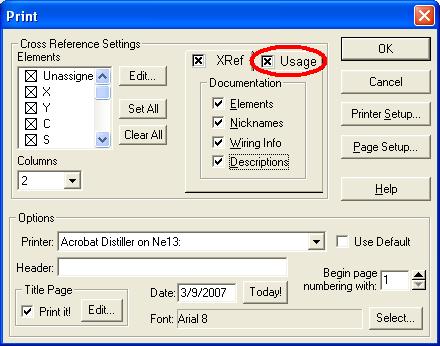
DirectSOFT FAQ0200
09-Mar-2007
Q: How can I change the default backup folder that DirectSOFT
uses?
A: You must edit DirectSOFT's DS500.INI file and change the
BACKUP PATH parameter:
- To pull up the .INI file for editing, see DirectSOFT
FAQ0204.
- To edit the BACKUP PATH parameter in the .INI file, see
DirectSOFT FAQ0008.
DirectSOFT FAQ0201
20-Feb-2007
Q: If dots (periods; ".") are used in the project filename,
sometimes 2 projects are created.
A: This is a bug in the way in which DirectSOFT handles the
filenames. We have scheduled to fix this one in DirectSOFT v5.2. Until
then do not use dots (periods) in the project
filename, but instead use something like an underscore ("_").
DirectSOFT FAQ0202
20-Feb-2007
Q: Will the MATHBIN (IB-501), MATHBCD (IB-521) or MATHR (IB-541)
IBoxes support the "^" as a "raised-to" exponent function?
A: No. This is because this functionality is not supported by the
DL PLCs. Remember that IBoxes are not something new, but are actually
Ladder macros. Therefore since behind the IBox graphic is simply
Ladder Logic, then IBox functionality depends on the Instruction Set
of the DL PLC. To do this kind of math would require a BASIC
Coprocessor.
DirectSOFT FAQ0203
30-Mar-2007
Q: How can I turn off Program Updates for DirectSOFT v5.x?
A: First of all, you must be logged in as Administrator. The
procedure is basically the same for WinXP, Win2K and WinME. You simply
go to Start --> Settings --> Control Panel and click on the
Program Updates icon and then select the option you want.
DirectSOFT FAQ0204
17-Sep-2015
Q: How can I edit my DS300.INI, DS400.INI, DS500.INI or DS600.INI
file?
A: Pick the group of instructions below that best applies to
your PC:
If you have WinVista, skip to the heading WinVista below, if not read information under the heading WinXP & Win7.
WinXP & Win7:
WinVista:
WinVista has some extra protection
features, so the above procedures may or may not work depending on its
settings. WinVista has a feature called UAC (User Access Control) that
is, by default, turned ON. However, it is possible to turn this feature
OFF, and this dramatically affects the editing of the .INI file. To
modify the UAC setting:
(1) Use the Windows Start button: Start
--> Control Panel.
(2) Click on "User Accounts".
(3) Click on "Turn UAC ON/OFF".
This will tell you if this feature is ON or OFF. Depending on this setting go to the proper heading below (UAC=ON or UAC=OFF).
(UAC=ON):
With UAC=ON, the security measures of WinVista creates a "virtual store copy" of your .INI file and redirects DirectSOFT to use this copy instead of the one that is normally stored in the c:\Windows folder.
- If you have DirectSOFT v3, v4, v5.0 or v5.1 then you will have to find this file manually and edit it:
(1) Close DirectSOFT and DSLaunch.
(2) Use Windows Explorer to browse to:
c:\Users\<username>\AppData\Local\VirtualStore\Windows\
(3) Find the DS300.INI (or DS400.INI or DS500.INI) and open it with NotePad.
(4) Make your edits; save the file and exit.
(5) Restart DSLaunch (or DirectSOFT).
- If you have DirectSOFT v5.2 or v6:
(1) Close DirectSOFT.
(2) Start DSLaunch.
(3) In the left column under "Utilities", double-click DS500.ini (DS600.ini). This will open the correct file in NotePad text editor.
(4) Make your edits; save the file and exit.
(5) Restart DSLaunch (or DirectSOFT).(UAC=OFF):
- Regardless of the version of DirectSOFT, this procedure has to be used:
(1) Close DirectSOFT and DSLaunch.
(2) Use the Windows Start button: Start --> Run...
(3) Type in ds300.ini (or ds400.ini or ds500.ini) and press <OK>. This will open it in NotePad text editor.
(4) Make your edits; save the file and exit.
(5) Restart DSLaunch (or DirectSOFT).
DirectSOFT FAQ0205
02-Apr-2007
Q: If background colors in ladders are changed to something dark,
and the foreground to something light, then the XRef
(cross-reference) display becomes unreadable because its foreground
colors do not change.
A: This was a bug in all versions of DirectSOFT from v5.0
and earlier. It is fixed in DirectSOFT v5.1 and later.
DirectSOFT FAQ0206
02-Apr-2007
Q: Double-clicking on DS500.INI (or DS400.INI) entry in DSLaunch
does not edit the proper .INI file if using WinVista.
A: Yes, the security measures of WinVista present this
problem. When you double-click on this entry in DSLaunch, a DS500.BAT
(or DS400.BAT) file is executed in the c:\Windows folder that calls up
the DS500.INI (or DS400.INI) file in NotePad text editor.
Unfortunately this doesn't work if using WinVista because the actual
.INI file is stored in:
c:\Users\<username>\AppData\Local\VirtualStore\Windows\
DirectSOFT v4.0 & v5.x
To remedy this, you can:
- Edit the correct file manually using the one in the above folder, or...
- Download one of the following .BAT files (ZIPPED up) and replace the one in your Windows folder.
Once you have replaced your existing DS500.BAT (or DS400.BAT) file with the new one then when you double-click on the .INI entry in DSLaunch, the .BAT file will pull up the correct .INI file for your system. It will work for WinXP (and earlier versions of Windows) as well as WinVista.
For DirectSOFT v4.0, download this one: DS400.ZIP
For DirectSOFT v5.x, download this one: DS500.ZIP
DirectSOFT v3.0
For DirectSOFT v3.0 it requires one more step than the above. Not only do you have to download the following .BAT file and replace the one in your Windows folder, but you have to manually edit the DS300.INI file and add the line:
DS300.ini=0,C:\WINDOWS\DS300.BAT
...underneath the [UTILITIES] heading, then Save and Exit.
NOTE: Remember! The DS300.INI file you have to manually edit to add the above line (if you have WinVista) is the one located in:
c:\Users\<username>\AppData\Local\VirtualStore\Windows\
Once you have replaced your existing DS300.BAT file with the new one and have manually edited the VirtualStore version of your DS300.INI file, then the DS300.INI option will show up in DSLaunch under Utilities, and when you thereafter double-click on it, the .BAT file will pull up the correct .INI file for your system automatically.
For DirectSOFT v3.0, download this one: DS300.ZIP
DirectSOFT FAQ0207 (see
also ECOM FAQ0087)
03-Apr-2007
Q: Is it possible for the ECOM100 to ping?
A: No. Currently the ECOM100 cannot initiate an ICMP protocol
ping. It will answer pings directed to it, but it cannot initiate
them. We are, however, thinking about creating an IBox and an ECOM100
firmware upgrade that would support this.
DirectSOFT FAQ0208 (see
also ECOM FAQ0088)
04-Apr-2007
Q: I'm confused about Modbus TCP addressing/mapping and also how to
determine which Modbus Function Code (FC) is being used by the
ECOM100 (client/master or server/slave).
A: The Modbus TCP addressing/mapping scheme that had to be
utilized by the ECOM100 is a bit complicated. However, you can
download the following .PDF file which basically has 2 pages; one
describing the use of the ECOM100 as a Modbus TCP Master (Client) and
one describing the use of the ECOM100 as a Modbus TCP Slave (Server).
ECOM100 Server Client Mapping.PDF file.
DirectSOFT FAQ0209
16-Apr-2007
Q: What is the limitation of the size of the equation I can enter
in the MATHBCD, MATHBIN and MATHR IBoxes?
A: Each of these MATH IBoxes have a limitation of 506 characters
in the equation.
DirectSOFT FAQ0210
07-May-2007
Q: What is the bookmark feature in DirectSOFT v5.x?
A: Unfortunately, this feature is not documented in any Help file,
or in any manual. It is a feature that is included in DirectSOFT v5.0
and later. This feature allows you to bookmark a rung in Ladder logic
that you can use later. How to use:
Multiple bookmarks can be entered. But unfortunately you cannot delete single entries. But to delete all entries, you merely have to close the Output Window.
DirectSOFT FAQ0211
22-May-2007
Q: Can DirectSOFT be used with a project stored on a mapped drive
(or network drive)?
A: Yes, but follow these guidelines:
Observing these guidelines will prevent bizarre errors that can occur due to things like:
DirectSOFT FAQ0212
04-Aug-2009
Q: Attempt to start DirectSOFT (selecting from menu, or
double-clicking on icon) and nothing happens (no error messages).
A: We have discovered this is the symptom of a possible 3 problems
on your PC (i.e. all 3 problems have this exact same symptom). This
symptom is caused by either (1) a permissions issue, or, (2) a
security issue, or, (3) an actual crash.
(1) Permissions Issue: If it is this issue, then it simply means that at your current login level on WinXP, you do not have permission from your Admin to run DirectSOFT. Thus try:
(2) Security Issue: If it is this issue, then it means that the security settings on your WinXP session will not allow the execution of the DirectSOFT program. Thus try one of these:
(3) Actual Crash: If this is the issue, then this is a WinXP system problem that we have not yet figured out. The problem is that the NTDLL.DLL file is crashing before it even calls our program. We are currently working on figuring this out, but until then, here are some suggestions:
In this Actual Crash issue, if you are interested in helping us solve this issue, you can use the program called "Dependency Walker" that can be downloaded from the Internet to log what happens on your PC when the error occurs, and then e-mail that log file to us (support@hosteng.com). There is a feature in "Dependency Walker" called "explicit dependency" or "dynamic dependency" or "runtime dependency" that allows you to do a log when you execute the DSLaunch. This is the one you need to use. These logs may help us in solving the issue. So far, these logs have only indicated that NTDLL.DLL is crashing but we don't know why. Any help would be greatly appreciated!
DirectSOFT FAQ0213
07-Jun-2007
Q: When in Edit mode, typing in "OUT" always pulls up the
instruction used with bits; how do you pull up the OUT associated
with V-memory?
A: There are 2 OUT instructions (bitwise & wordwise).
Another way to do this is:
DirectSOFT FAQ0214
18-Jun-2007
Q: Monitoring a counter (e.g. CT0) in ladder logic, why does
DirectSOFT v5.x display only 1 value in status, whereas DirectSOFT
v4.0 displays 2?
A: It is because you have a constant (K) as the counter's preset
and DirectSOFT v5.x "knows" it is not necessary to display the 2nd
number.
When doing Status for a counter the 2 values that are displayed in DirectSOFT v4.0 are:
It is not always necessary to display them both. The preset of a counter can either be a constant (K) or a variable (V-memory). If it is a constant (K), then really the 2nd number displayed in Status is superfluous even though DirectSOFT v4.0 just goes ahead and displays them both all the time. DirectSOFT v5.x "knows" whether you have entered a constant (K) or variable (V-memory) for the preset. If you have entered a constant (K), then there is no need to display the 2nd value; if you have entered a variable (V-memory) then it is necessary to display the 2nd value.
DirectSOFT FAQ0215
03-Jul-2007
Q: What are the SETB, RSTB and OUTB instructions?
A: These instructions are actual PLC instructions that set a bit,
reset a bit and output a bit respectively. However, you will not see
these instructions displayed in DirectSOFT, but only with a handheld
programmer. DirectSOFT displays these instructions as simple SET, RST
and OUT instructions.
DirectSOFT FAQ0216
11-Jul-2007
Q: While installing DirectSOFT, get, "InstallShield is trying to
install or uninstall a file that is currently being used by another
program. Locked file : c:\windows\system32\msvcr71.DLL"
A: This file is Microsoft Visual C Runtime Dynamic Link Library
and it is a very commonly used DLL by many programs. Exactly as the
message says, the file is being used by another program. When doing an
installation it is always best to shutdown all other programs
beforehand. However, since you have already gotten this message, it is
best to click the <Postpone> button and let the install finish,
and then reboot the PC. If you see any other strange behavior after
this, then uninstall DirectSOFT, reboot PC, and reinstall and try
again.
DirectSOFT FAQ0217
27-Aug-2007
Q: Having trouble creating links using serial radios. Is there a way
to control the RTS signalling?
A: It is possible to control the time in which the RTS signal is
delayed when using hardware handshaking for a serial link. To enable
and use these functions, lines must be added to the DS500.INI
(DS300.INI, DS400.INI) file and the RTSxDelay parameters added:
- To pull up the .INI file for editing, see DirectSOFT
FAQ0204.
- To edit the RTSxDelay parameters in the .INI file, see
DirectSOFT FAQ0008.
Example:
RTSOnDelay=5
RTSOffDelay=2
By default, these settings are 1 ms. In the above example the "RTS on
delay" is set to 5 ms (i.e. turn RTS ON, wait 5 ms, then start
sending), and the "RTS off delay" is set to 2 ms (i.e. send, wait for
last character to be out of Xmit buffer, wait 2 ms, then turn RTS
OFF).
DirectSOFT FAQ0218
08-Sep-2010
Q: When Elements, Nicknames, Wiring Info and Description
are exported to a .CSV or .TXT file, all carriage return <CR>
and linefeeds <LF> are lost from the Description.
A: Currently this is the nature of the Export function. So, even
though you can insert carriage returns <CR> and linefeeds
<LF> by pressing the <CTRL><ENTER> keys in the Description
field, these are only saved in the DirectSOFT project's documentation
files. But the Export function strips these control characters out of
the Description because of the nature of the Element database,
thus the resultant .TXT or .CSV file doesn't have them. Consequently,
if you import the exported file into something like Excel, the
Description will be in one cell.
Likewise, if you create a file (.TXT or .CSV) with carriage returns <CR> and linefeeds <LF>, these will not be imported either.
Plans are to change the Element database such that it becomes possible to preserve these characters in future releases of DirectSOFT.
DirectSOFT FAQ0219
01-Oct-2007
Q: When using the <Write-to-PLC> button, get "Error writing
memory to PLC!".
A: This is a very general error. Depending on the protocol that
is being used it can mean several different and specific things. To
see the specific error information, in DirectSOFT goto PLC --> Link
Setup... Here you may see more specific error information that can be
further researched in the PLC manual. For example, we have seen the
following error listed there:
DirectSOFT FAQ0220 (see
also DL-Plus FAQ0008; Lookout Direct FAQ0013)
02-Nov-2007
Q: Trying to run LookoutDirect, DirectSOFT and DL-Plus, and
getting "Hostxx.DLL could not be found" error.
A: This is probably due to incompatible CommServer (Csmain.EXE)
versions and Hostxx.DLL versions. The Hostxx.DLL is our extension of
Microsoft Foundation Class Library (MFCxx.DLL) and is used by most of
our software products. Hostxx.DLL is located in the DirectSOFTxx\Bin
folder and is shared by DirectSOFT programming, LookoutDirect and
DL-Plus.
When any of the above applications are started, they load their version of the CommServer (Csmain.EXE). If another of the above applications is then started, it does not reload its version of the CommServer, but tries to use the one already running. This could result in incompatibilities if caution is not taken as to the order in which the applications are started up. In other words, if you run an app that uses an earlier version of Csmain.EXE, and then load one that uses a later version of Csmain.EXE, the latter app may try to use more advanced functions that the former Csmain.EXE cannot perform.
Thus if you are going to run multiple versions, you should run the latest one first.
Furthermore, the latest versions of DL-Plus and LookoutDirect can be downloaded from our website and you can use your older v4.x keycode to install them.
DirectSOFT FAQ0221
04-Sep-2008
Q: Changes made to the Toolbar in DirectSOFT v5.x are not being
saved; the default Toolbar is always displayed.
A: This is probably because you are using WinVista and you have
the UAC (User Access Control) turned ON. Since the Toobar information
is stored in the registry, WinVista's UAC is blocking this from
happening. The only work-around is to temporarily turn the UAC OFF.
You can turn it back ON after making the Toolbar changes if you like.
To turn UAC ON/OFF:
(1) Use the
Windows Start button: Start --> Control Panel.
(2) Click on "User Accounts".
(3) Click on "Turn UAC ON/OFF".
DirectSOFT FAQ0222
09-Sep-2009
Q: After entering an IBox in DirectSOFT5, get error: "Can't
generate a macro mnemonic list at offset..."
A: This error is caused by a program (e.g. LookoutDirect,
DirectSOFT4, etc.) starting and running the older version 4 DirectSOFT
CommServer (Csmain.EXE) and then trying to use DirectSOFT5 after that.
In other words, one of these programs has been started first, and
loads the older version 4 CommServer into PC memory, then DirectSOFT5
is started and it sees a CommServer is already loaded into PC memory
and therefore tries to use it. For the most part DirectSOFT5 can
utilize this older CommServer, but there are some things that are
added to DirectSOFT5 that use new features and therefore require the
newer version 5 CommServer. Thus the solution is:
(1) Close
all programs.
(2) Even if you are going to run
something like LookoutDirect or DirectSOFT4 simultaneously on your PC, start
DirectSOFT5 first.
These older programs, though they come with version 4 of the CommServer, can fully utilize version 5 of the CommServer with no issues. In other words, version 5 of the CommServer is backward compatible with them.
DirectSOFT FAQ0223
01-Oct-2010
Q: What analog modules work with the ANLGIN / ANLGOUT /
ANLGCMB IBoxes?
A: The Analog IBoxes can be used in any DL PLC that supports
the so-called "pointer method" and with most analog
input/output modules. However, on some of them it does not complete
the job of configuring the module. The Analog IBoxes set up 3
parameters:
(1) Number of Channels.
(2) Data Format
(3) Pointer
If the analog module you are using has more setup options than the above, then there are additional things that need to be done. Sometimes these are jumper settings and sometimes these are extra ladders that need to be programmed to setup special configuration V-memory locations.
The chart below summarizes these concepts. For details on the extra settings, please refer to your particular analog module's manual.
| ANALOG MODULE | IBox To Use | Other Settings Required (if any) |
| F0-04AD-1 | ANLGIN | Jumpers to set Input Range. |
| F0-04AD-2 | ANLGIN | Jumpers to set Input Range. |
| F0-08ADH-1 | ANLGIN | |
| F0-08ADH-2 | ANLGIN | Jumpers to set Input Range. |
| F0-04DAH-1 | ANLGOUT | |
| F0-04DAH-2 | ANLGOUT | |
| F0-08DAH-1 | ANLGOUT | |
| F0-08DAH-2 | ANLGOUT | |
| F0-4AD2DA-1 | ANLGCMB | Jumpers to set Input & Output Range. |
| F0-4AD2DA-2 | ANLGCMB | Jumpers to set Input & Output Range. |
| F0-2AD2DA-2 | ANLGCMB | Jumpers to set Input & Output Range. |
| F0-04RTD | ANLGIN | Additional ladders to set RTD Type, Units Code, Burnout Value, Diagnostics Error |
| F0-04THM | ANLGIN | Additional ladders to set Input Type, Units Code, Burnout Detection, Burnout Value, Diagnostics Error |
| F2-04AD-1 | ANLGIN | Jumpers to set Number of Channels. |
| F2-04AD-1L | ANLGIN | Jumpers to set Number of Channels. |
| F2-04AD-2 | ANLGIN | Jumpers to set Number of Channels, Input Range. |
| F2-04AD-2L | ANLGIN | Jumpers to set Number of Channels, Input Range. |
| F2-08AD-1 | ANLGIN | Jumpers to set Number of Channels. |
| F2-08AD-2 | ANLGIN | Jumpers to set Number of Channels, Input Range. |
| F2-02DA-1 | ANLGOUT | |
| F2-02DA-1L | ANLGOUT | |
| F2-02DA-2 | ANLGOUT | Jumpers to set Output Range. |
| F2-02DA-2L | ANLGOUT | Jumpers to set Output Range. |
| F2-02DAS-1 | ANLGOUT | |
| F2-02DAS-2 | ANLGOUT | Jumpers to set Output Range. |
| F2-08DA-1 | ANLGOUT | |
| F2-08DA-2 | ANLGOUT | Jumpers to set Output Range. |
| F2-4AD2DA | ANLGCMB | |
| F2-8AD4DA-1 | ANLGCMB | Additional ladders to set Input Resolution, Input Track & Hold. |
| F2-8AD4DA-2 | ANLGCMB | Additional ladders to set Input Resolution, Input & Output Ranges, Input Track & Hold. |
| F2-04RTD | ANLGIN | Jumpers to set Number of Channels, RTD Type, Conversion Type. |
| F2-04THM | ANLGIN | Jumpers to set Number of Channels, Input Type, Conversion Units, Calibrate Enable |
| DL405 analog modules | None | Ladders to configure everything (DL405 CPUs do not support analog pointer method). |
DirectSOFT FAQ0224 (see
also CTRIO FAQ0008)
20-Jul-2018
Q: Encountering various problems when starting up CTRIO Workbench:
A: Here are some of the more common problems:
| CPU | Firmware | Hardware | Slot |
| DL05 | v4.60 | - | - |
| DL06 | v1.40 | - | Any |
| D2-240 | v3.22 | - | Not slot 0 |
| D2-250 | v1.56 | - | Not slot 0 |
| D2-250-1 | v3.5 | - | Not slot 0 |
| D2-260 | v1.2 | - | Not slot 0 |
| H2-WPLC | - | xK | Any |
| H2-EBC | v2.1.357 | - | Prior
Rev 9A --> Not slot 0 Rev 9A --> Any |
| H2-EBC100 | Any | - | Any |
| H2-PBC | Any | - | Prior
Rev 4A --> Not slot 0 Rev 4A --> Any |
| D4-450 | April
2000: H8 (CISC) v2.00 SH (RISC) v1.5000 May 2000: H8 (CISC) v2.00 SH (RISC) v2.500 |
- | Any |
| H4-EBC | v2.1.328 | v4F | Any |
| T1H-EBC | v1.0.444 | v2I | Any |
| T1H-EBC100 | Any | Any | Any |
| T1H-PBC | v1.1.10 | v2D | Any |
| T1K-DEVNETS | v1.80 | - | Any |
| T1K-MODBUS | v1.80 | - | Any |
DirectSOFT FAQ0225
20-Dec-2010
Q: Get "Load Error - File not found" when double-clicking on a
project file (.PRJ) in Windows Explorer.
A: DirectSOFT was not designed to be executed from Windows
Explorer. We invented DSLaunch to manage projects instead.
Technically the error occurs because DirectSOFT's executable (DSP5x.EXE for DirectSOFT5) must be executed in its local folder (c:\DirectSOFT5\Bin). When you double-click on a project, it is generally not stored in this local folder and therefore it gives you the error.
DirectSOFT FAQ0226
20-Dec-2010
Q: Are Data View files (.DTA) backward and forward compatible
between versions of DirectSOFT?
A: Yes. The format hasn't changed from DirectSOFT v2.x to 5.x.
DirectSOFT FAQ0227
24-Jan-2011
Q: Starting DirectSOFT and get "Error! Error number 0 launching
DSP5x.EXE".
A: This error is a return code from ::WinExec type method (values
<32 are errors). Per Microsoft's documentation, "0" means:
"The system is out of memory or resources"
Thus a reboot might fix this or you need to see if your PC has run out of RAM or hard drive space.
DirectSOFT FAQ0228
02-Jan-2019
Q: What are the versions of DirectSOFT and their release dates?
A: The following chart shows all versions from the creation of
DirectSOFT until now:
| DirectSOFT Classic Releases | |
| VERSION | DATE |
| 1.00 | 25-Feb-1994 |
| 1.1i | Mar-1995 |
| 2.0c | Feb-1997 |
| 2.1 | Apr-1997 |
| 2.2 | Aut-1997 |
| 2.3 | Jan-1998 |
| 2.3a | Aug-1998 |
| 2.4 | Dec-1998 |
| 2.4a | Jan-1999 |
| 3.0 Build 23 | Jul-1999 |
| 3.0 Build 26 | Sep-1999 |
| 3.0a Build 28 | Oct-1999 |
| 3.0b Build 33 | 28-Oct-1999 |
| 3.0c Build 44 | 10-Feb-2000 |
| 3.0c Build 48 | Mar-2000 |
| 3.0c Build 50 | Apr-2000 |
| 3.0c Build 51 | May-2000 |
| 3.0c Build 52 | 25-May-2000 |
| 3.0c Build 54 | 24-Aug-2000 |
| 3.0c Build 56 | 08-Sep-2000 |
| 3.0c Build 58 | 20-Oct-2000 |
| 3.0c Build 62 | 14-Feb-2001 |
| 3.0c Build 71 | 16-Jul-2001 |
| 3.0c Build 80 | 08-Oct-2002 |
| 4.0 Build 12 | 16-Jul-2002 |
| 4.0 Build 16 | 26-Jul-2002 |
| 4.0 Build 18 | 26-Nov-2002 |
| 4.0 Build 20 | 24-Jun-2003 |
| 4.0 Build 22 | 09-Sep-2003 |
| 4.0 Build 23 | 14-Feb-2004 |
| 4.0 Build 24 | 24-May-2004 |
| 4.0 Build 25 | 07-Sep-2004 |
| 5.0 | 02-Mar-2006 |
| 5.1 | 27-Mar-2007 |
| 5.2 | 21-Jun-2007 |
| 5.3 | 05-Jun-2008 |
| 6.0 | 17-Dec-2014 |
| 6.0a | 05-Mar-2015 |
| 6.0b | 25-Feb-2016 |
| 6.0c | 17-Jun-2016 |
| 6.1 | 14-Jun-2017 |
| 6.1a | 29-Sep-2017 |
| 6.2 | 20-Jul-2018 |
| 6.3 | 14-Nov-2018 |
DirectSOFT FAQ0229
13-May-2011
Q: Output window shows "MRX instruction has too few parameters: Found
8 parameters : Requires 10" when importing a program.
A: This is caused by trying to import into DirectSOFT v5.1 (or
later) a file that both has an MRX instruction in it and was previously
exported by a version earlier than DirectSOFT v5.1 (e.g. DirectSOFT4 or
DirectSOFT 5.0, etc.).
The reason for this is that when the DCM modules came out, in order for Port 2 on the DCM modules to be used by the Modbus instructions (MRX/MWX) two parameters (module & slot) had to be added to the instruction. This support was added to DiretSOFT v5.1, so earlier versions of the MRX/MWX instruction only had 8 parameters instead of 10.
Probably the best way to fix this is to edit the file you are trying to import and manually add the two extra parameters like so:
Before the edit the line might look
like this in the file:
// Rung 4
// Address 13
STRN SP116
MRX K2 K1 K2 K10001 VC0 K40 K0 V400
After adding the two extra parameters:
//Rung 4
// Address 13
STRN SP116
MRX K0 K0 K2 K1 K2 K10001 VC0 K40 K0
V400
Then you can import the file and edit it if necessary.
DirectSOFT FAQ0230
09-Jun-2011
Q: What is the meaning of the all the parameters in the Ethernet
Advanced Settings dialog of the Link editor?
A: This parameter is located under Configure Link --> Port
--> Advanced Settings. The following is the technical definition of
all those parameters listed there:
DirectSOFT
FAQ0231
14-Dec-2011
Q: After exporting the program with "Expand
I-Boxes" checked, importing gives
"Filter Error: Determining Program Length" then
"Unable to import Program" then "MDS
is not a legal instruction for the specified PLC type."
A: This error means exactly
what it says. Just because you can export a program with the IBoxes
expanded does not mean you can import that same file back. If you are
interested in importing the file back because you want to see the ladder
logic inside the expanded IBox (versus just looking at the mnemonic
instructions in the exported file), then you have to edit the exported
file and delete all the lines (or comment them out using the //
characters) in the file that start with MDS or MDE. After these are
deleted, it is possible to import the file. However, if this is done,
please keep in mind it is very possible that some of the instructions
that are in the IBox import may not be able to be displayed in ladder
logic properly. This is analogous to utilizing an old handheld
programmer and writing a working program that cannot be displayed
properly in ladders.
The instructions that are illegal are actually the ones we created to make IBoxes possible. They are:
MDS = Meta Data Start
MDE = Meta Data End
These instructions actually do nothing at all (no operation). But are
used merely to delimit the start and end of IBox mnemonics.
DirectSOFT
FAQ0232
06-Jan-2015
Q: Getting error while doing an
Import "The given parameters are either invalid, not in the right
order, or can not be used together".
A: This error means exactly what it says. Usually this is
because your TXT file that is being imported has an invalid parameter
for the instruction it names. However, there is one special case that
is a bug in DirectSOFT import engine: If your Nickname begins with the
letters "DEF" then you will get this error. For instance if you had
this instruction line in your TXT file:
OUT "DEFAULT STEP"
...you would get this error even though the Nickname "DEFAULT STEP" is
valid. The error is caused by the import interpreting the letters
"DEF" as a DRUM data type. Oops! We will fix that in the next release
of DirectSOFT 6.
The workaround is to change your Nickname to something that does not
begin with the letters "DEF". For example, "ADEFAULT STEP" will work;
so will "xDEFAULT STEP" or even "_DEFAULT STEP".
DirectSOFT
FAQ0233 (see also Do-more FAQ0037)
10-Jul-2015
Q: When using Do-more Designer's Migration Tool, the ONDTMR
and OFFDTMR IBoxes translate with the "Delay Time" 10x too big.
A: Oops. This is a bug in all versions of Do-more Designer up to v1.4.
This will be corrected in the next version of Do-more Designer
(v1.4.1?). For now, the "On Delay Time" or "Off Delay Time" parameters
will have to be manually edited and corrected.
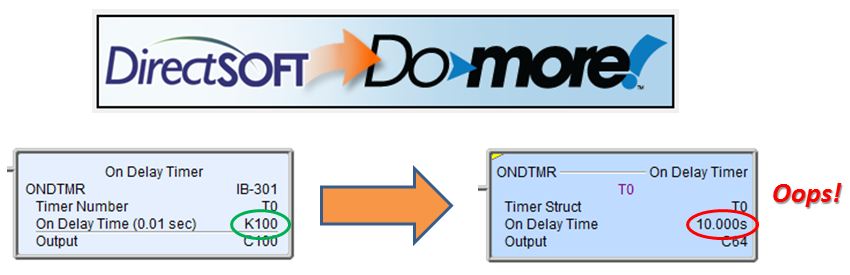
[COMMON]
MessageBoxTime=5
The number '5' means that the startup error message will self-acknowledge and disappear in 5 seconds. If you put a zero there, it will wait forever (i.e. no change in behavior). You can set this number to just about any value you want (within reason, of course).
WARNING: This line turns off messages for the CommServer which is the driver that DirectSOFT uses to talk to the DL PLCs. DSData software also uses the same CommServer; so turning these type messages off for one will also turn them off for the other.